Quick Prompt
Quick Prompt is a context-aware assistant panel that embeds in a host application alongside — or instead of — the standard chat. Unlike the chat, which the user drives entirely by typing, Quick Prompt watches the user's navigation, captures the context of what is on screen (the current document, task, or folder, plus search results), and offers a curated list of prompts relevant to that context.
It is delivered as a separate web component and is the recommended way to surface AI assistance directly inside an ECM application such as FlowerDocs.
What the user sees
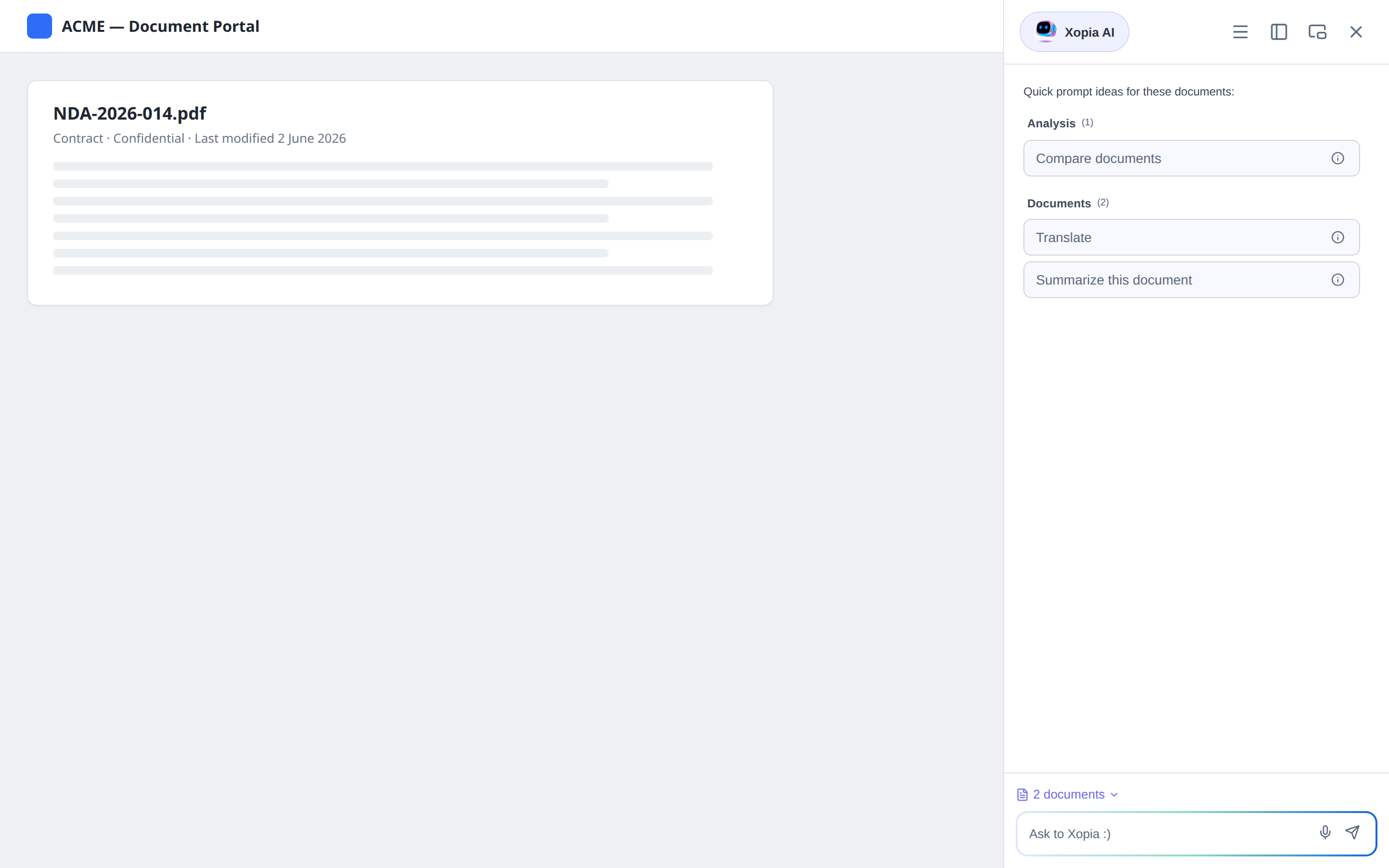
Figure: Quick Prompt embedded in a host application. The panel offers prompts relevant to the documents currently in view, grouped by category.
Figure: Quick Prompt opens a side panel of context-relevant prompts; selecting one streams an answer.
- A toggle button opens the panel from the host application's UI.
- The panel lists the prompts that apply to the current screen, grouped by category and ordered by priority.
- Selecting a prompt runs it against the captured context and streams the answer.
- The panel keeps a conversation history (searchable), and supports copy, feedback, retry, and speech-to-text input.
- It can be docked, dragged as a floating window, resized, or popped out as a browser Picture-in-Picture window.
How context is captured
The host application tells Quick Prompt how to derive the current context from the page. As the user navigates, Quick Prompt updates a context payload that can include:
| Context element | Description |
|---|---|
user | The signed-in user (id, name, roles, groups, …) |
tenant | The current tenant |
documents | One or more documents in view (id, type, title, properties, tags) |
tasks | One or more tasks in view |
folders | One or more folders in view |
injected | Arbitrary extra values the host pushes (e.g. the current view type) |
capabilities | Boolean feature flags the host advertises |
When a prompt is run, this payload is serialized and sent to the configured LLM as supplementary context, in addition to the prompt template itself.
The captured document/task/folder properties become part of the request sent to the configured LLM provider. Only expose prompts — and push context fields — that are appropriate to share with your provider.
How prompts are selected for display
Which prompts appear in the panel is controlled by each prompt's Display Settings (configured in the admin panel — see Managing prompts). A prompt is shown only when both are true:
- Its display settings are enabled, and
- Its display condition — a JavaScript expression evaluated against the current context — returns
true.
Display conditions are evaluated client-side in a restricted sandbox: only literals, property access, comparisons, logical/conditional operators, and a small set of helpers (includes, startsWith, endsWith, some, every, find) are allowed; there is no access to eval, Function, or global objects. A condition that fails to parse or throws at runtime evaluates to false, so the prompt is simply hidden.
Examples of display conditions:
// Show only when a single PDF document is in view
documents.length === 1 && documents[0].type === 'pdf'

// Show only for users with a reviewer role
user.roles.includes('REVIEWER')

// Show only in a folder view
injected.viewType === 'folder'
End users only ever receive each prompt's display settings (label, category, priority, description, condition) — never the prompt template content or its LLM configuration.
Relationship to the chat component
Quick Prompt and the chat (<chat-element>) share the same backend (conversations, requests, streaming, prompts) but serve different needs:
| Chat | Quick Prompt | |
|---|---|---|
| Driven by | The user typing | The user's navigation + curated prompts |
| Context | What the user types | Auto-captured document/task/folder context |
| Prompt discovery | The user knows what to ask | Context-filtered prompt cards |
| Display | In-page chat panel | Dockable / floating / Picture-in-Picture panel |