Embed Quick Prompt in a web application
This guide explains how to embed the Quick Prompt context-aware assistant panel in a host web application. Quick Prompt is a separate web component from the chat; embedding it follows the same "load a bundle, configure at runtime" model but adds a small integration handle that tells Quick Prompt how to read the current context from your application.
No build step is required on the consuming application side.
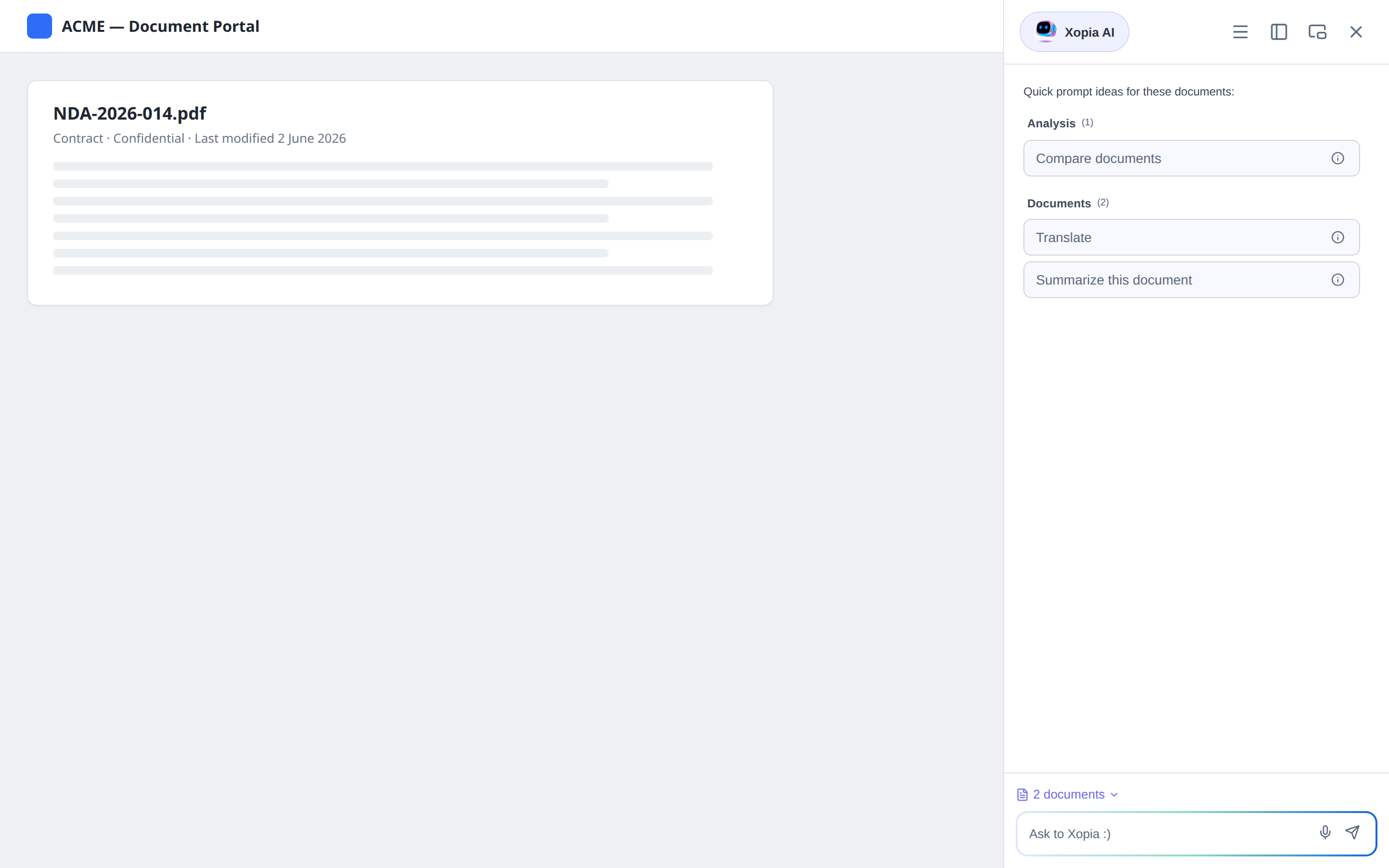
Figure: the result — Quick Prompt docked beside a host application, offering prompts relevant to the documents in view.
Prerequisites
- A running Uxopian AI stack with the gateway reachable from the browser.
- At least one LLM provider configured.
- One or more prompts with Display Settings enabled (see Managing prompts — Display Settings). Quick Prompt shows nothing until at least one prompt is enabled and its display condition passes.
1. Load the bundle
Add the Quick Prompt stylesheet and script to the host page. Both are served as public assets by the gateway:
<link rel="stylesheet" href="https://your-gateway/api/web-components/quick-prompt/style" />
<script src="https://your-gateway/api/web-components/quick-prompt/script"></script>
This registers two custom elements — quick-prompt-element (the panel) and qp-toggle-button (the toggle) — and exposes the integration API on window.
When the host application is served from a different origin than the gateway, configure CORS at the gateway. The permissive CORS configuration built into uxopian-ai is active only under the dev Spring profile and must not be relied upon in production.
2. Create the integration handle
Call window.createQuickPromptIntegration() once, after the page has loaded. It creates the panel and returns a handle you use to feed identity and context to Quick Prompt.
const qp = window.createQuickPromptIntegration({
  endpoint: 'https://your-gateway',
  // target: optional HTMLElement or selector to mount the panel inline
  // onClose: optional callback invoked when the user closes the panel
});
| Option | Required | Description |
|---|---|---|
endpoint | yes | The gateway origin as reachable from the browser (e.g. https://your-gateway). Quick Prompt appends /api/v1 itself — do not include it. |
target | no | An HTMLElement or CSS selector to mount the panel inline; omitted, the panel docks to the page |
onClose | no | Callback invoked when the user closes the panel |
3. Set the identity
Tell Quick Prompt who the user is and which tenant they belong to. These values are included in the context sent to the LLM and are available to display conditions.
qp.setTenant('acme');

qp.setUser({
  userId: 'jdoe',
  username: 'Jane Doe',
  locale: 'en',
  roles: ['REVIEWER'],
  groups: ['legal'],
});
The userId must match the user the gateway authenticates (the X-User-Id it injects). All other user fields are optional.
4. Provide the current context
There are two ways to keep Quick Prompt's context in sync with your application. You can combine them.
Option A — Declarative routes (recommended for URL-driven apps)
Declare how to resolve context from the URL. Quick Prompt observes navigation (hash changes, history pushState/replaceState, back/forward) and calls the first matching route's resolve function. The result is turned into context automatically.
qp.setRoutes([
  {
    route: '/documents/:id',
    resolve: async ({ id }) => ({
      documentId: id,
      type: 'pdf',
      title: await fetchTitle(id),
      properties: await fetchProperties(id),
    }),
  },
  {
    route: '/tasks/:id',
    resolve: ({ id }) => ({ taskId: id, title: 'Review contract', status: 'open' }),
  },
]);
- Routes are matched in order — the first match wins, so list the most specific routes first.
:idin aroutestring matches a single path segment; aRegExpcan be used instead of a string.resolve({ id, url })may beasyncand must return a plain object (or array of objects), ornullto clear.- The returned object is classified automatically: a
documentIdmakes it a document, ataskIda task, afolderIda folder. - Set
replaceContext: falseon a route to merge into the existing context instead of replacing it.
Option B — Imperative pushes (for non-URL events)
When context changes without a URL change (a selection, a search result, a tab switch), push it directly:
qp.setDocument({ documentId: 'doc-123', type: 'pdf', title: 'NDA.pdf' });
qp.setDocuments([{ documentId: 'a' }, { documentId: 'b' }]);   // multi-selection
qp.setTask({ taskId: 't-1', taskType: 'review', status: 'open' });
qp.setFolder({ folderId: 'f-9', title: 'Contracts', path: '/Contracts' });
qp.setInjected({ viewType: 'folder' });                        // arbitrary extra context
| Method | Effect |
|---|---|
setDocument(doc) | Replace the context with a single document (tenant/user kept; tasks and folders cleared) |
setDocuments(docs) | Replace the document list, keep existing tasks and folders |
setTask(task) / setTasks(tasks) | Same, for tasks |
setFolder(folder) / setFolders(folders) | Same, for folders |
setInjected(obj) | Merge arbitrary key/values into injected |
Context object shapes
| Object | Required field | Optional fields |
|---|---|---|
| Document | documentId | type, title, properties, tags |
| Task | taskId | title, taskType, status, assignee, properties |
| Folder | folderId | title, path, properties |
| User | userId | username, locale, roles, groups, attributes |
5. React to activity (optional)
qp.setCallbacks({
  onPromptExecuted: (result) => console.log('prompt run', result),
  onConversationOpened: (conversationId) => console.log('conversation', conversationId),
  onError: (error) => reportError(error),
});
6. Inspect or tear down
qp.getContext();   // returns the current context payload (or null)
qp.destroy();      // detaches observers and removes the panel
Verification
- Load the host page with the browser developer tools open (Network tab).
- Confirm
/api/web-components/quick-prompt/scriptand/stylereturn HTTP 200. - Open the panel via the toggle button and confirm prompt cards appear for the current screen. If the panel is empty, check that at least one prompt is enabled in Display Settings and that its display condition matches the current context.
- Navigate to a document/task route and confirm the prompt list updates.
- Select a prompt and confirm a
POST /api/v1/requests/streamrequest is issued and the answer streams into the panel.
Common issues
| Issue | Cause | Solution |
|---|---|---|
| Panel is empty | No enabled prompt, or display condition does not match | Enable prompts and review their display conditions in the admin panel |
| Script returns 404 | Bundle not available or gateway route not configured | Verify /api/web-components/quick-prompt/script is reachable through the gateway |
| Context not updating | Routes not matched or pushed imperatively | Check the route patterns (order matters) or call the setDocument/setTask/… methods on navigation |
| CORS errors in the console | Host on a different origin than the gateway | Configure CORS at the gateway (the built-in permissive CORS is dev-profile only) |
Related pages
- Quick Prompt (concept)
- Managing prompts — Display Settings
- Managing scripts — deliver the host connector as an admin-managed, security-scanned script
- Embed the chat interface
- Web components