Managing Plans in the admin UI
The Plans section of the admin panel lets you build, run, and monitor Agentic Plans — multi-step workflows of AGENT, DIRECT_TOOL, and SUBPLAN nodes — through a visual flow editor, without writing the plan definition by hand.
Navigate to Plans
In the admin panel, click Plans in the navigation. The page lists all plans for the current tenant with a search box, and a New Plan button.
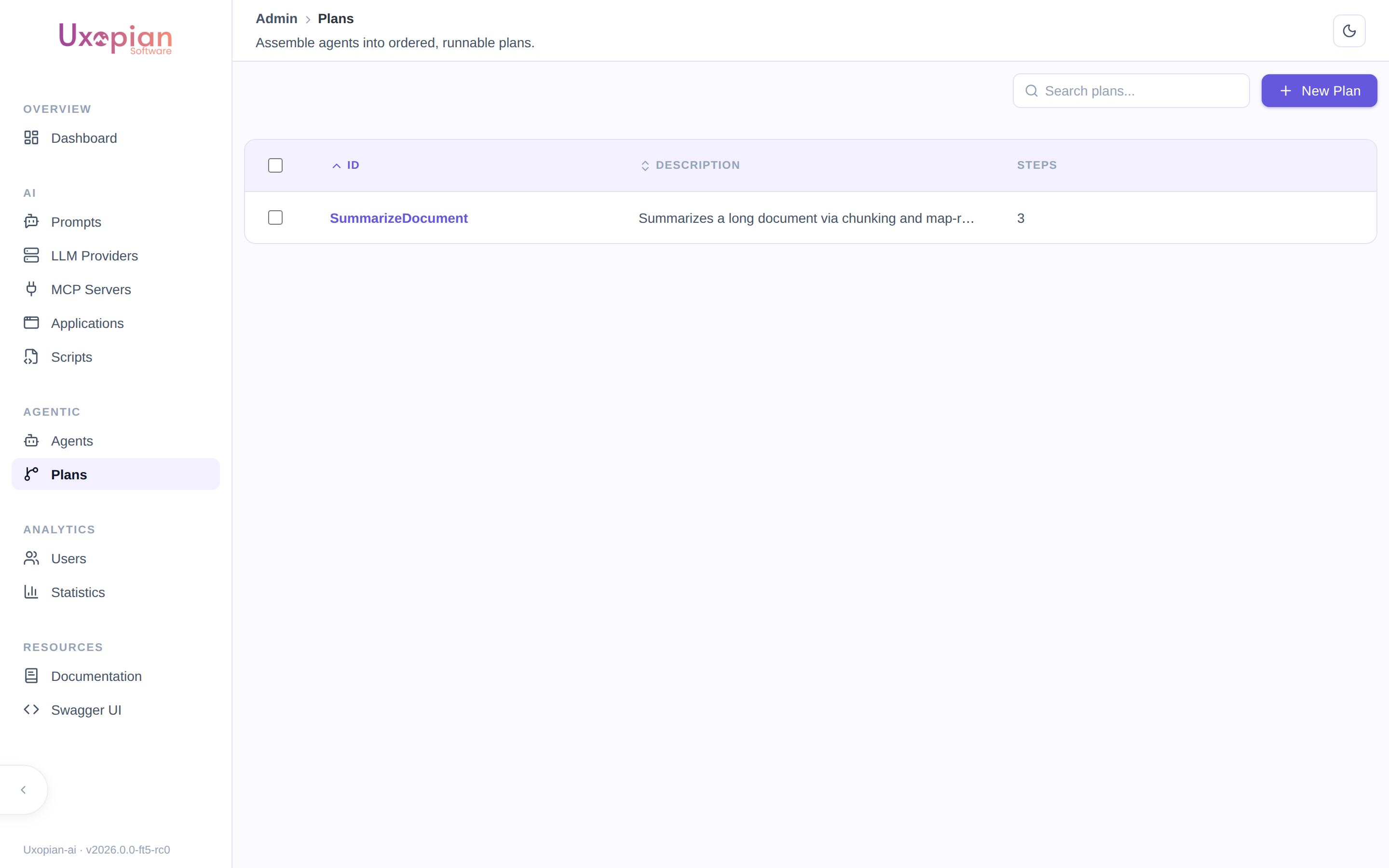
Figure: The Plans list.
Create a plan
- Click New Plan. This opens the plan editor on the Flow tab.
- Set the Plan ID (immutable once saved) and an optional Description.
- Click Add Node to add a node to the graph, then drag from one node's edge to another to connect them — a connection sets a dependency: the target node waits for the source node to complete.
- Select a node to open its configuration panel.
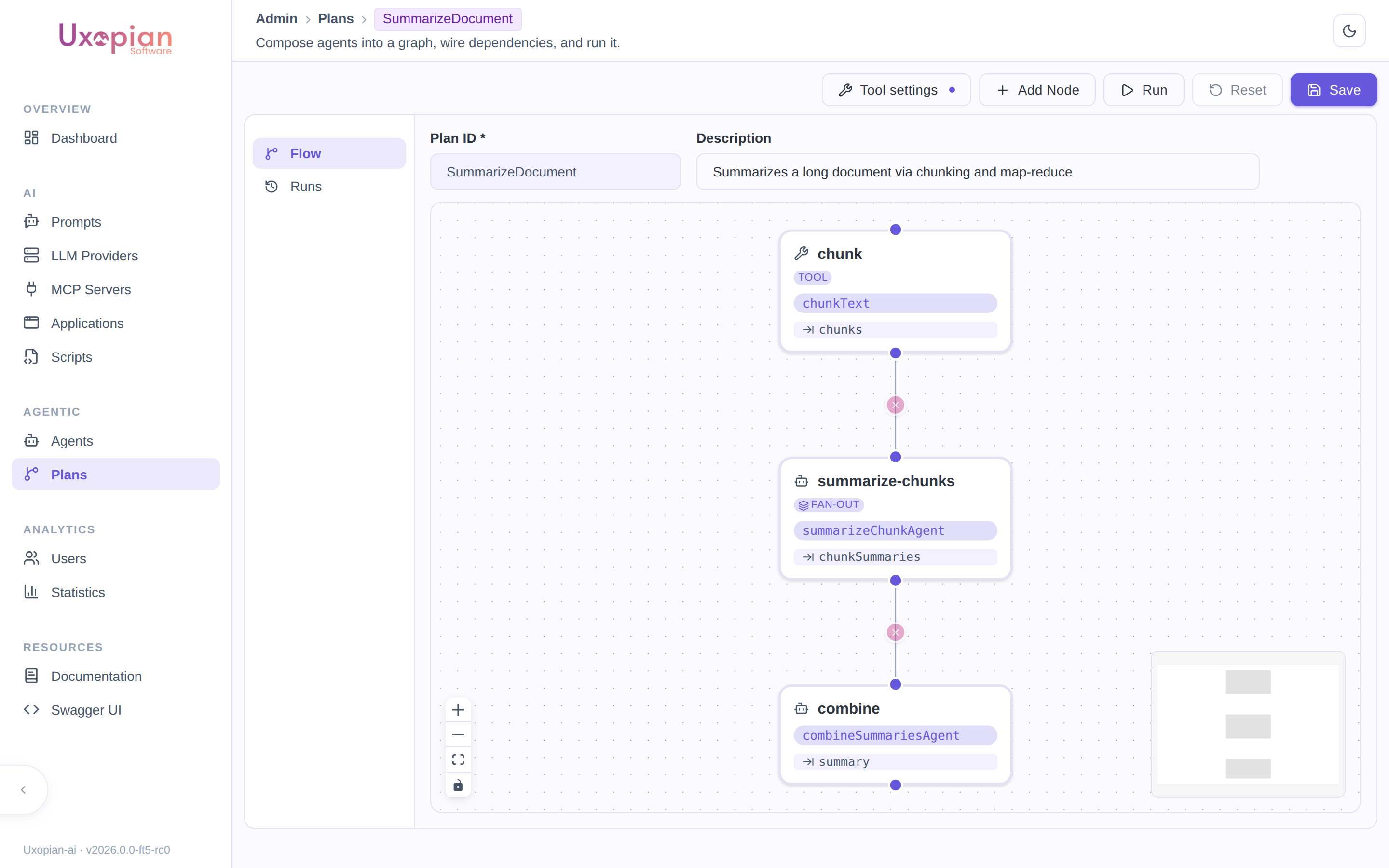
Figure: A three-node plan — chunk (Direct tool) → summarize-chunks (Agent, fan-out) → combine (Agent).
Configure a node
Every node, regardless of type, has:
| Field | Description |
|---|---|
| Name | Short label shown on the node in the graph |
| Description | Free text describing what the node does |
| Fan out over a list | Runs this node once per element of a list instead of once — see Fan-out below |
| Output Key | The payload key under which this node's result is published |
| Persist output to shared payload | When on, the output becomes visible to every downstream node, not just direct dependents |
Then pick the node type — Agent, Sub-plan, or Direct tool — each with its own fields:
- Agent: select an existing agent configuration from the dropdown, or click New agent to create one inline without leaving the plan editor. Once an agent is selected, its objective prompt is shown with the variables currently available to this node (dependency outputs, persisted outputs, plan input parameters, and — if fan-out is on — the
itemvariable) highlighted, so you can see at a glance what the prompt can reference. - Sub-plan: select another plan from this tenant to run as this node's body.
- Direct tool: select a native tool from the dropdown (grouped by tag). Once selected, each of the tool's arguments gets its own source dropdown, listing every value currently available to this node (fan-out item, a connected dependency's output, a persisted output, or a plan input parameter) — the argument is auto-bound automatically when there is exactly one possible source.
Fan-out: run a node once per list element
A node normally runs once. Turn on Fan out over a list and it runs once per element of a JSON array already present in the payload, with several elements in flight at the same time — the map step of a map-reduce, expressed as a single node instead of one node per element.
Two fields appear when you enable it:
| Field | Description |
|---|---|
| List Key | The payload key holding the JSON array to iterate. The array has to already be in the payload — published by an upstream node's Output Key, or supplied as a plan input parameter. In the figure below, a chunk Direct tool node publishes its fragments under chunks, and the fan-out node's list key is chunks. |
| Max Parallel Elements | How many elements run concurrently (default 8). Lower it when the underlying LLM provider is rate-limited; raise it for throughput. A fan-out list is capped at 200 elements. |
What changes inside the node:
- Each run gets an
itemvariable holding its own element, on top of the same payload every other node sees. This is what an Agent node's objective prompt references to work on "its" element (itemshows up in the highlighted variable list described above), and what a Direct tool node's arguments can be bound to. - The node's Output Key holds a JSON array of all the per-element results, in the order of the input list — so a downstream node can read that one key and reduce the whole set in a single call.
- A single failing element fails the whole node, and the error message names which indexes failed.
So the three-node plan in the figures is a complete map-reduce: chunk splits a document into chunks (no LLM), summarize-chunks fans out one agent call per chunk in parallel and publishes chunkSummaries, and combine reads that array and writes the final summary. A natural side benefit is that the many cheap map calls and the single quality-critical reduce call are separate agent configurations, so they can use different models.
For the underlying mechanics, see Agentic Plans — Fan-out.
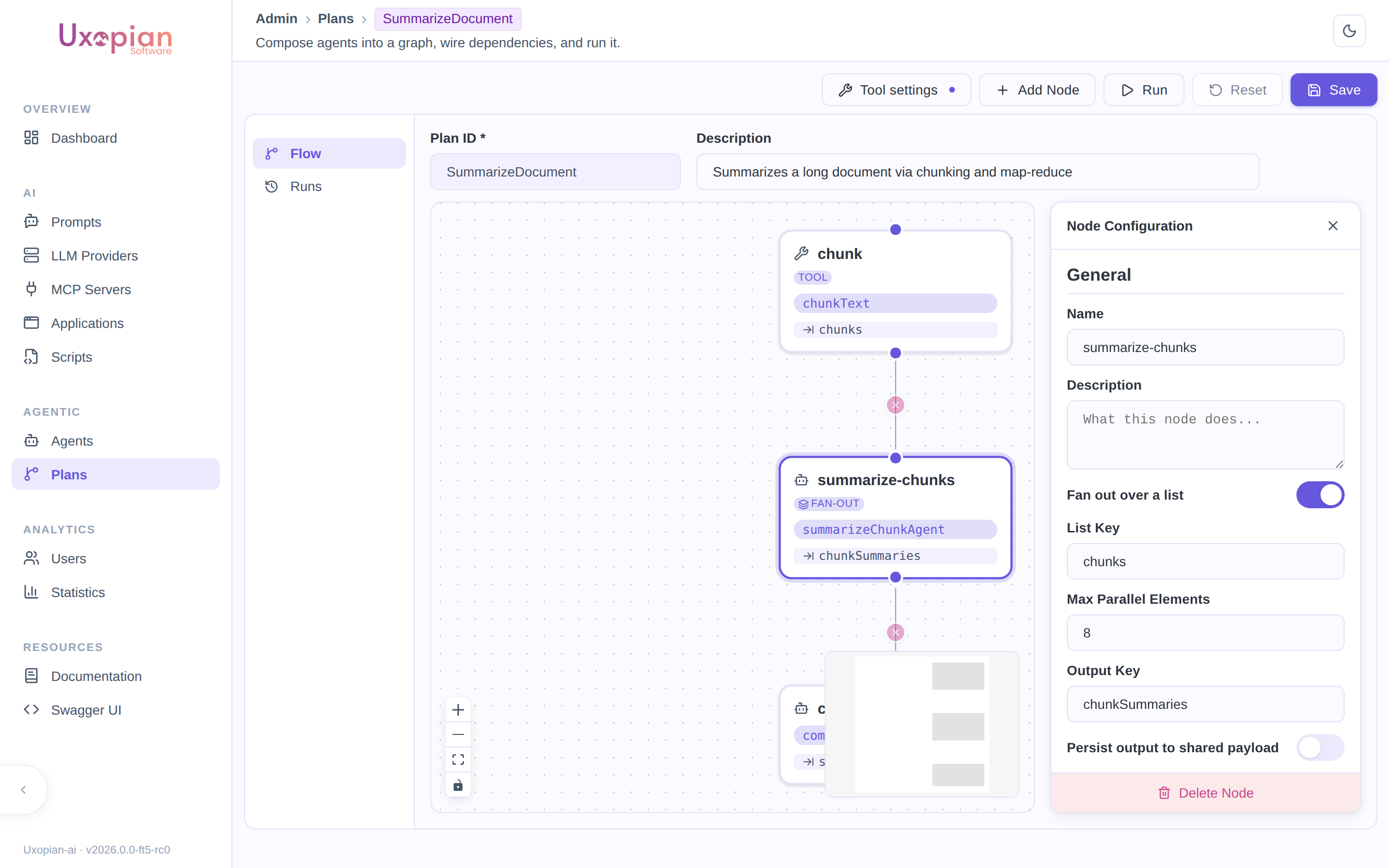
Figure: Configuring a fan-out node — chunks is the list key, up to 8 elements run in parallel.
Expose a plan as a tool
Click Tool settings (top of the Flow tab) to open the tool-exposure panel:
| Field | Description |
|---|---|
| Expose this plan as a callable tool | Master switch; leave off to keep the plan private |
| Tool description | What an agent should use this plan for — shown to the calling agent as the tool's description |
| Input parameters | Named, typed parameters the caller provides when invoking this plan as a tool. The editor suggests names already referenced inside the plan (a listKey or a DIRECT_TOOL argument binding) that aren't produced by any node — a likely sign they're meant to come from outside. |
A plan exposed this way is only actually callable by an agent whose configuration explicitly allows it — see Agentic Plans — exposing a Plan as a tool.
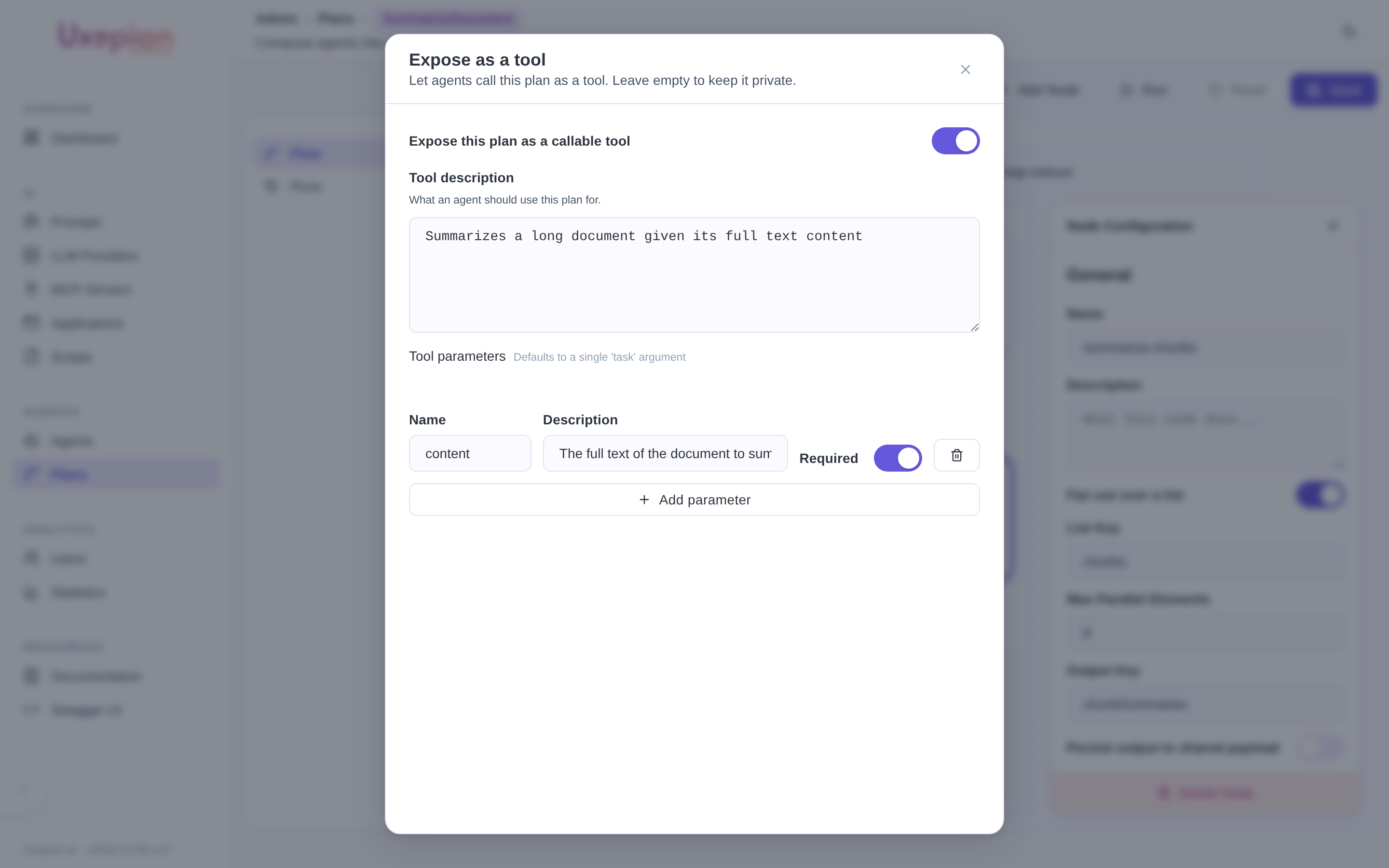
Figure: Exposing a plan as a tool named for its plan id, taking a content parameter.
Run a plan
Click Run (available once the plan is saved). If the plan declares input parameters, a modal collects a value for each (required ones are enforced) before starting; otherwise the run starts immediately with no payload. The editor switches to the Runs tab and opens the new execution.
Monitor an execution
The Runs tab shows, for a saved plan, a selector over its past executions (when there is more than one) and the currently selected execution's detail:
- Overall status badge (
Pending,Running,Paused,Completed,Failed,Cancelled), execution id, creation time, node count, and total token/tool-call consumption. - A Pause button while
Running, Resume whilePaused, and Stop whileRunningorPaused— pausing lets in-flight nodes finish before the execution actually stops; resuming continues from where it left off without re-running completed nodes; stopping moves the execution permanently toCancelled, keeping the trace. - A visual graph of the plan's nodes, color-coded by their own status (
Pending,Running,Completed,Failed,Skipped,Unsatisfied). Selecting a node shows its start/completion time, input/output token counts, error message (if any), full output, and every tool call it made — each expandable to see the exact arguments, result, and (if it failed) error. - If the whole execution failed, the failure reason is shown at the top.
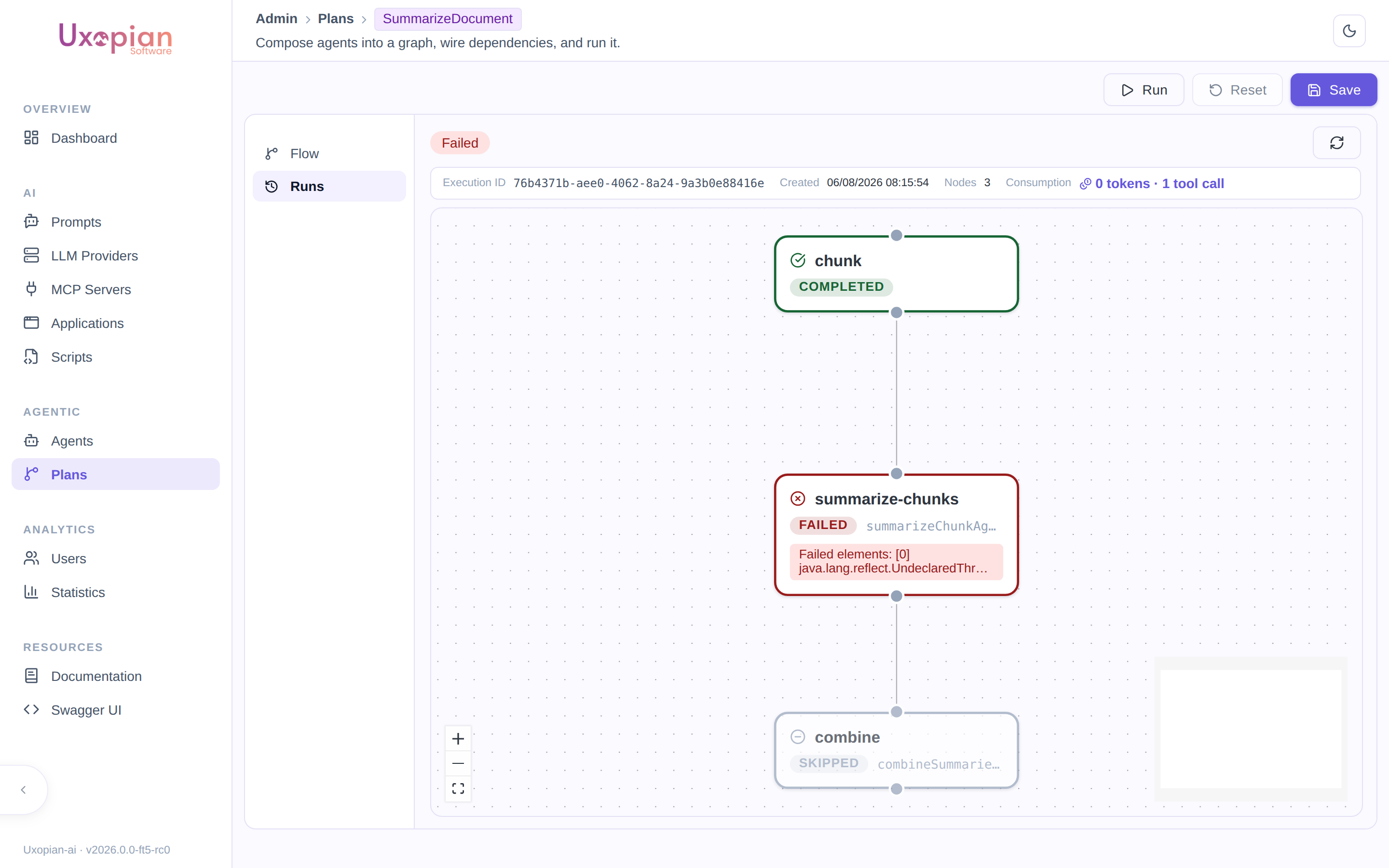
Figure: A failed run — each node's status is color-coded, and its own detail panel (not pictured selected here) shows timing, tokens, and errors.
REST API
The admin UI is a thin wrapper around two controllers. All endpoints require the ADMIN role and operate on the current tenant.
Plan definitions — /api/v1/admin/plans
| Method | Path | Description |
|---|---|---|
GET | / | List all plans |
GET | /{id} | Get one plan |
POST | / | Create a plan |
PUT | /{id} | Update a plan |
DELETE | /{id} | Delete a plan |
Plan executions — /api/v1/admin/plan-executions
| Method | Path | Description |
|---|---|---|
GET | / | List main (non-nested) plan executions; nested runs are reachable through their parent execution |
GET | /{id} | Get one execution, including every node's state |
POST | /run | Create and immediately start an execution ({ "planId": "...", "inputPayload": { ... } }); returns 202 Accepted with the initial execution |
POST | /{id}/pause | Request a cooperative pause (409 if not RUNNING) |
POST | /{id}/resume | Resume a paused execution (409 if not PAUSED) |
POST | /{id}/stop | Stop permanently — moves to CANCELLED (409 if already terminal) |
DELETE | /{id} | Delete an execution record |