Managing Applications in the admin UI
Since 2026.0.0-ft5, an Application (ApplicationConf) scopes a set of AI defaults and guardrails — a default LLM provider/model, a system prompt fragment, a maximum number of tool-calling cycles, and a tool/MCP permission whitelist — to one usage surface. A single uxopian-ai deployment can therefore serve several integrations with different defaults, without the surfaces stepping on each other's configuration.
Why Applications: one deployment, two surfaces
Consider a deployment used by two very different audiences:
- FlowerDocs — end users asking questions about their documents from the FlowerDocs UI. High volume, interactive, and latency-sensitive.
- A custom internal tool — a back-office integration that calls uxopian-ai through its own connection provider to run longer, more autonomous analyses.
They want opposite settings. Without Applications, you either pick one compromise for the whole deployment, repeat the same overrides on every single request, or run a second deployment. With Applications, each surface carries its own configuration:
FlowerDocs Application | InternalTool Application | |
|---|---|---|
| Default LLM provider / model | A fast, inexpensive model — most turns are simple document questions | A stronger reasoning model, worth its cost on a handful of runs |
| Prompt | End-user tone, answers grounded in the user's documents | Internal tone, output formatted for the calling system |
| Max tool cycles | Low — an interactive answer should not spin through dozens of tool round-trips | High — long agentic runs are the point |
| Permissions | Search and read tools only | Adds the internal MCP server and the Plans the tool is allowed to invoke |
The gain is twofold:
- No cross-talk. Raising the internal tool's tool-cycle ceiling, or granting it an MCP server, changes nothing for FlowerDocs users. Each surface has its own blast radius.
- No per-request plumbing. The FlowerDocs UI does not have to send a model name, a prompt, or a tool whitelist on every call — the request arrives through the
FlowerDocsProviderconnection provider and uxopian-ai resolves the matching Application on its own (see below).
Every connection provider has a default Application
An Application is not opt-in plumbing you must wire up before anything works: the first time a connection provider is used, uxopian-ai automatically creates a default Application for it if none exists yet, named after the provider with any trailing Provider suffix stripped (FlowerDocsProvider → FlowerDocs, AlfrescoProvider → Alfresco). Creating an Application in the admin UI under that same derived name is how you customize the defaults for a provider without any other wiring.
An explicit X-Application-Id header on the request overrides this provider-derived lookup and forces a specific Application by id, regardless of which connection provider made the request.
Navigate to Applications
In the admin panel, click Applications in the navigation. The page lists every Application configured for the current tenant.
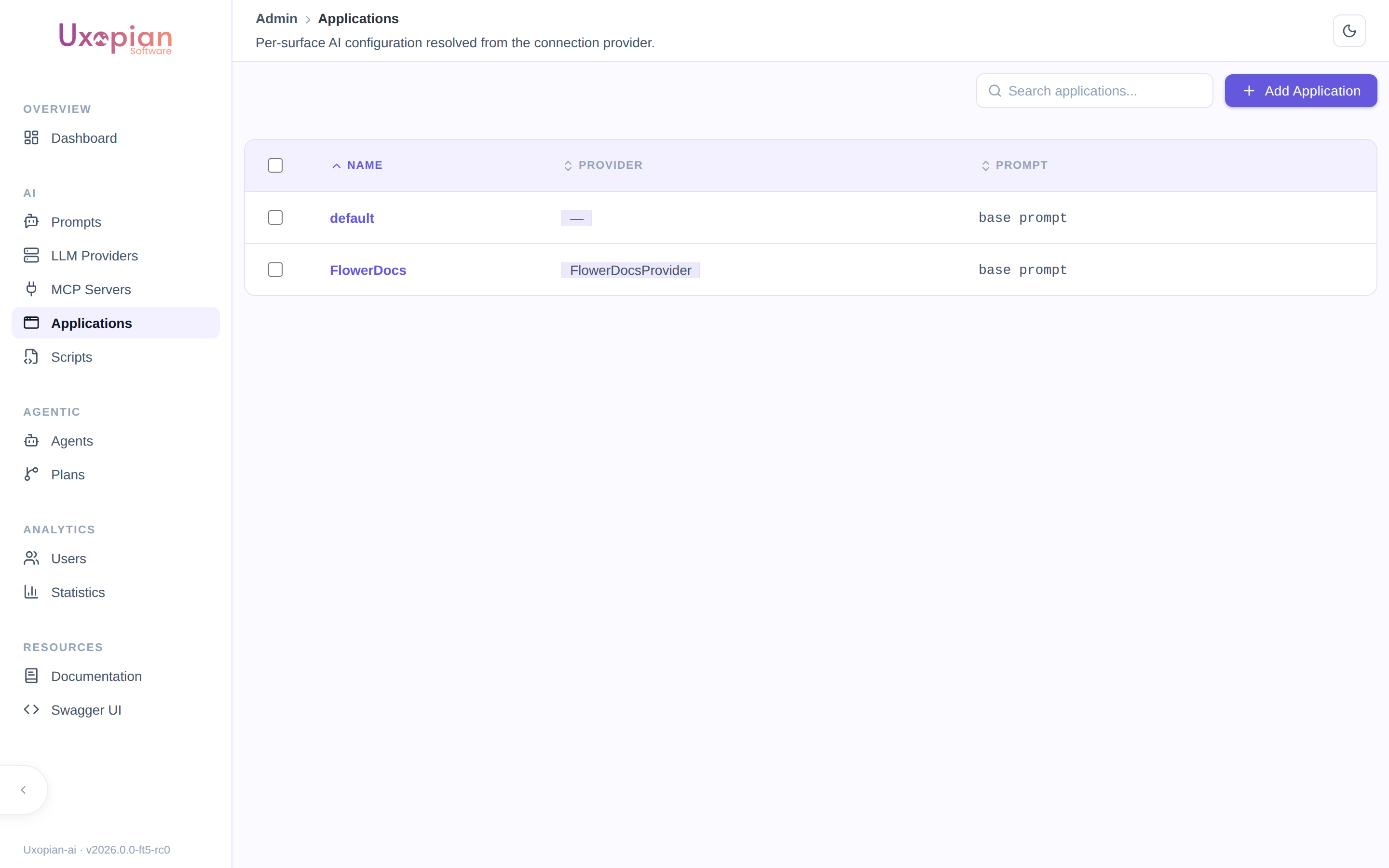
Figure: The Applications list — default was auto-created on first use; FlowerDocs was configured explicitly.
Fields
| Field | Description |
|---|---|
| Name | The Application's name — also becomes its id. Required, and immutable after creation (the id is derived from the name at creation time). |
| Description | Free-form description. |
| Provider | The connection provider (ProviderId, e.g. FlowerDocsProvider) this Application is associated with. Required in the editor — Save is disabled until both name and provider are filled in. |
| Prompt | A Prompt appended to the base prompt for conversations resolved to this Application. Leave unset to use the base prompt alone. |
| Default LLM provider / model | Used when neither the current turn's prompt nor the conversation already has a provider/model set — see Resolution order below. |
| Max tool cycles | Caps the number of tool-calling round-trips for this Application. Leave unset to use the system default. |
| Permissions | The same tool/tag/MCP-server/sub-plan whitelist used elsewhere in the admin UI (see below). |
Permissions
The Permissions section is the same reusable editor used for agent configurations in Managing Plans: a whitelist of native tool names, a whitelist of tool tags (or "allow all tools"), a whitelist of MCP servers (or "allow all MCP servers"), a denylist of specific tools (which always wins, even over an allow-all), and — relevant if you use the Agentic Plan engine — a whitelist of Plans this Application is allowed to invoke as callable tools.
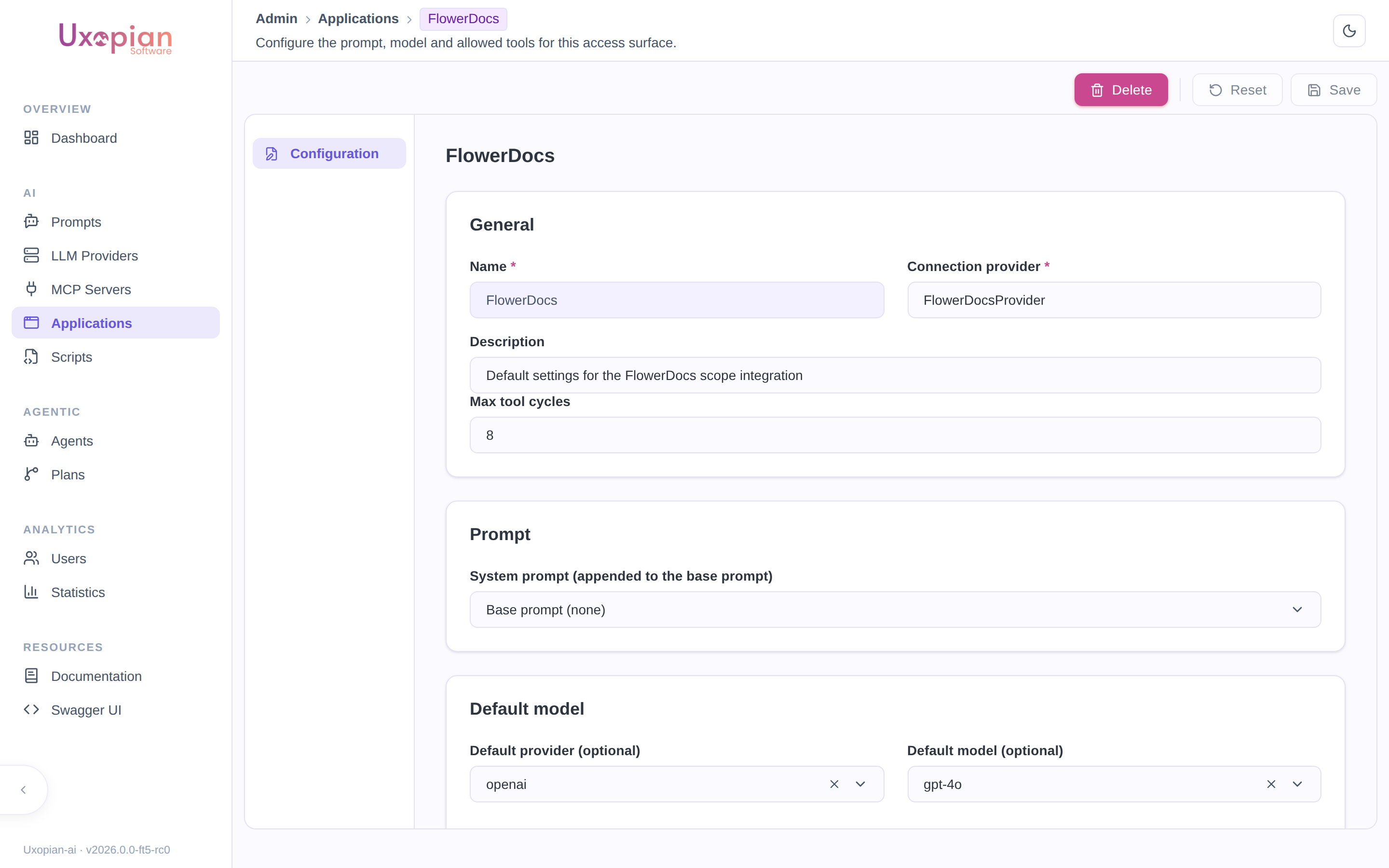
Figure: An Application's configuration.
Resolution order
Provider and model are resolved in this order, stopping at the first one that supplies a value:
- An explicit provider/model already set on the request itself (a caller-supplied override).
- The prompt used in the current turn, if any — its
defaultLlmProvider/defaultLlmModel. If the current turn has no prompt but the conversation already has a provider/model from an earlier turn, that's inherited instead (a conversation keeps the provider/model it started with across turns). - The resolved Application's
defaultLlmProvider/defaultLlmModel. - The system-wide default (
llm.default.provider/llm.default.model).
A Prompt's own default therefore always wins over an Application's default when a prompt is in play — the Application default only fills the gap when nothing more specific applied in this turn or earlier in the conversation.
Deleting a referenced Prompt is blocked
A Prompt that is either the base prompt or referenced as an Application's prompt cannot be deleted — the API returns a 409 Conflict naming the Application(s) that reference it. Remove the reference from the Application (or delete the Application) first.