Managing scripts in the admin UI
The Scripts section of the admin panel lets administrators author and deploy custom front-end JavaScript through a governed lifecycle that includes an LLM-based security scan. A typical use is the host connector that wires Quick Prompt into a business application: instead of hand-deploying a static .js file, the connector is authored in the admin panel, scanned, and served by uxopian-ai to authenticated users. The same mechanism carries the quick AI actions of the IBM Content Navigator plugin and the AI menu of the ARender viewer.
Scripts are managed per tenant. Changes take effect without restarting the application.
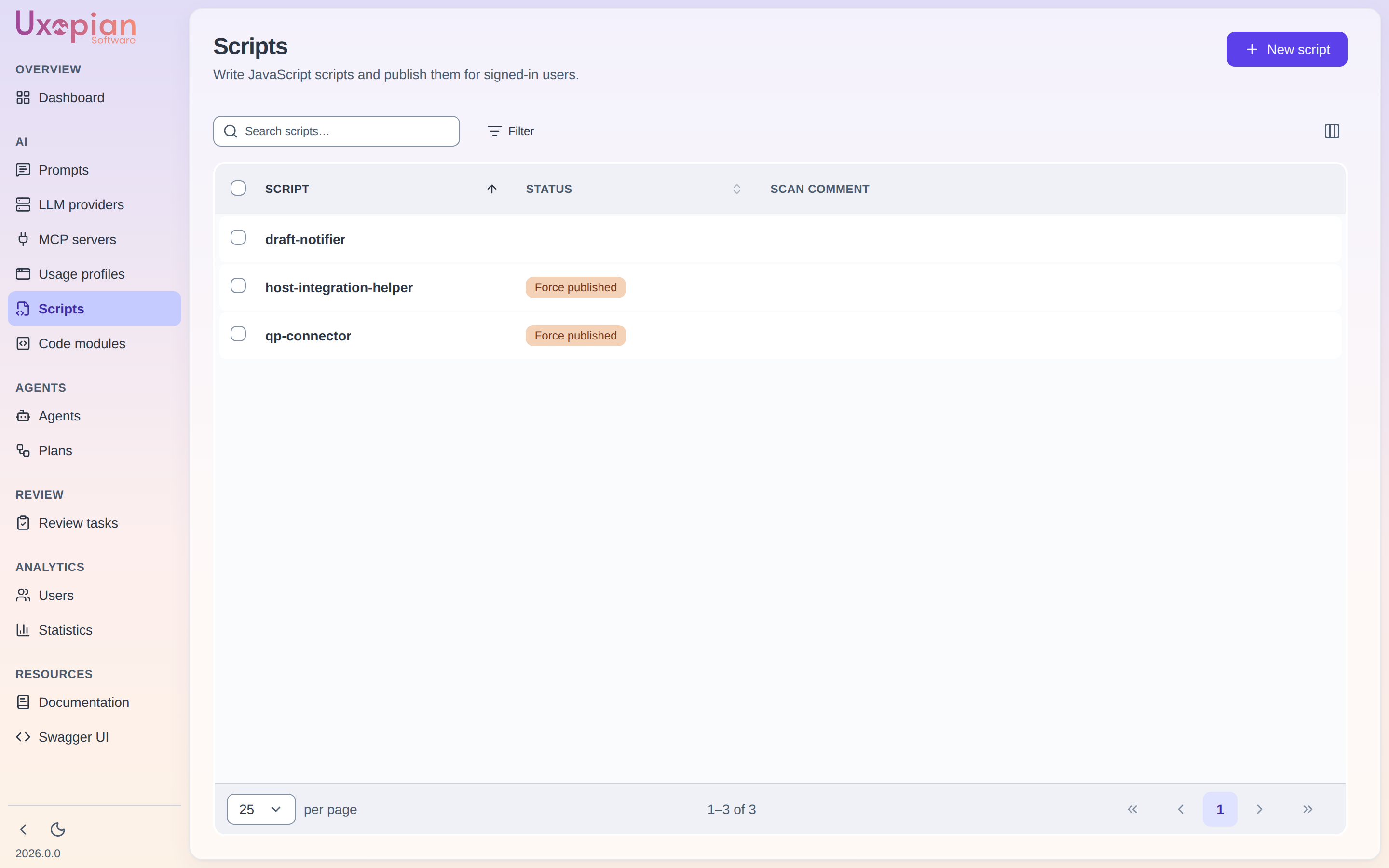
Figure: the Scripts section lists each script with its publication status (here, a force-published script and a draft). The list is paginated and filtered on the server (search, status).
The script lifecycle
Figure: A script is created, edited as a draft, scanned, and — once certified or force-published — deployed and served.
A script always has two faces:
- Draft content — what the administrator is editing. Not servable to users.
- Deployed content — the last published version. This is what end users receive.
Create a script
- In the admin panel, open Scripts and click New Script.
- Enter a name. The name is the script's ID: it is immutable and may contain only letters, digits,
_, and-. A name already used by another script is reported while you type, and Save is refused. - Save. The script is created empty; add its content on the detail page.
Edit a script
Open a script to reach its detail page, which provides a code editor and the script's current status.
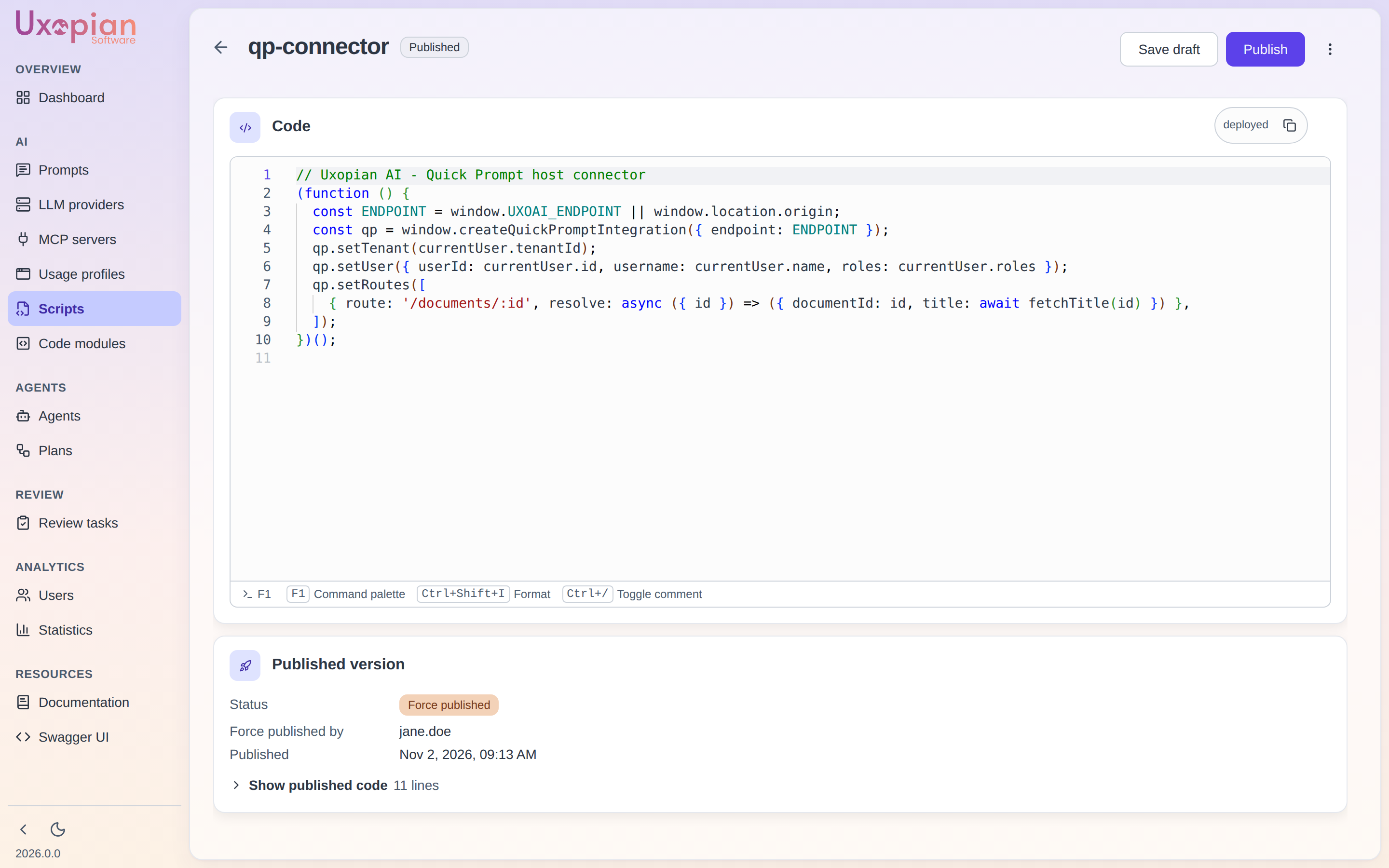
Figure: the script detail page — code editor, status badge, and the Delete / Discard / Save / Scan & publish actions.
| Action | Description |
|---|---|
| Save | Saves the editor content as the draft. Editing the draft of a certified script invalidates its certification — it must be re-scanned. |
| Discard | Reverts the editor to the last saved/deployed state. |
| Scan & publish | Runs the security scan; on a Certified verdict, the draft is automatically published and becomes servable. |
| Force publish | (In the Scan & publish dropdown.) Deploys the current draft without scanning. Use with care — the action is logged and attributed. |
| Delete | Removes the script after confirmation. |
You cannot modify a script's deployed content directly. All edits go through the draft; publishing promotes the draft to the deployed content.
Status
| Status | Meaning |
|---|---|
| Certified | The latest scan certified the draft as safe |
| Rejected | The latest scan rejected the draft; the scanner's comment is shown |
| Force published | The deployed content was published without a scan |
| Deployed | The script has deployed content and is being served |
| Pending scan | Transient indicator shown while a scan is in progress |
The security scan
The scan sends the draft content to a configured LLM with a security-review prompt and expects a verdict of Certified or Rejected with a comment. This requires an LLM provider to be configured for scanning:
| Setting | Environment variable | Default | Description |
|---|---|---|---|
script.scan.llm-provider-id | SCRIPT_SCAN_LLM_PROVIDER | (empty) | ID of a configured LLM provider used to run the scan. Required to enable scanning. |
script.scan.llm-model | SCRIPT_SCAN_LLM_MODEL | (empty) | Model to use; falls back to the provider's default model when blank |
script.scan.prompt | — | (built-in) | The security-review prompt sent to the model |
If no scan provider is configured, script create/edit/delete and force publish still work, but the Scan & publish action is unavailable. See Configuration — script-scan.yml.
Serving a script
A deployed script is served to any authenticated user as application/javascript, with HTTP caching (Cache-Control and ETag, so unchanged scripts return 304 Not Modified):
GET /api/v1/scripts/{id}
The ETag is a hash of the script's ID and its deployed content, so a browser picks up a new deployment instead of keeping the old script on 304. A script that has never been deployed is not servable and returns 401 Unauthorized. A draft can be previewed (for development) via GET /api/v1/scripts/{id}/draft.
To load a deployed script in a host page:
<script src="https://your-gateway/api/v1/scripts/myConnector"></script>
REST API endpoints
Administration (/api/v1/admin/scripts):
| Method | Endpoint | Description |
|---|---|---|
GET | /api/v1/admin/scripts | List scripts — a page { collection, total, facets } of summaries (without the code: derived status and line count). Filters: search, status, workspaceId; pagination: offset, limit, orderBy (id, not name), ascending |
GET | /api/v1/admin/scripts/{id} | Get a script by ID |
GET | /api/v1/admin/scripts/availability?id={id} | Whether a new script can take this ID (true / false) |
POST | /api/v1/admin/scripts | Create a script from its ID only — body {"id": "my-script"}; 409 if the ID exists |
PUT | /api/v1/admin/scripts/{id} | Update the draft content |
POST | /api/v1/admin/scripts/{id}/scan | Run the security scan |
POST | /api/v1/admin/scripts/{id}/publish | Publish a certified draft |
POST | /api/v1/admin/scripts/{id}/force-publish | Publish the draft without scanning |
DELETE | /api/v1/admin/scripts/{id}/draft | Discard the draft |
DELETE | /api/v1/admin/scripts/{id} | Delete the script (204 No Content) |
Serving (authenticated users):
| Method | Endpoint | Description |
|---|---|---|
GET | /api/v1/scripts/{id} | Serve the deployed script as application/javascript (401 if never deployed) |
GET | /api/v1/scripts/{id}/draft | Serve the draft as application/javascript (for preview) |