Install in ICN
We continue here the installation but in the ICN module of FileNet.
Prerequisite
Concerning SSO between ICN and ARender, cross-domain SSO is not supported, for example z.AAAcompany.com and w.BBBcompany.com - where the DNS domains are different. More information here: https://www.ibm.com/docs/en/was-nd/8.5.5?topic=authentication-single-sign-using-ltpa-cookies
Retrieve the ARender Web-UI archive
Using the username and password beforehand provided, you can retrieve the navigator plugin here
ARender and IBM Content Navigator
Sharing the LTPA key
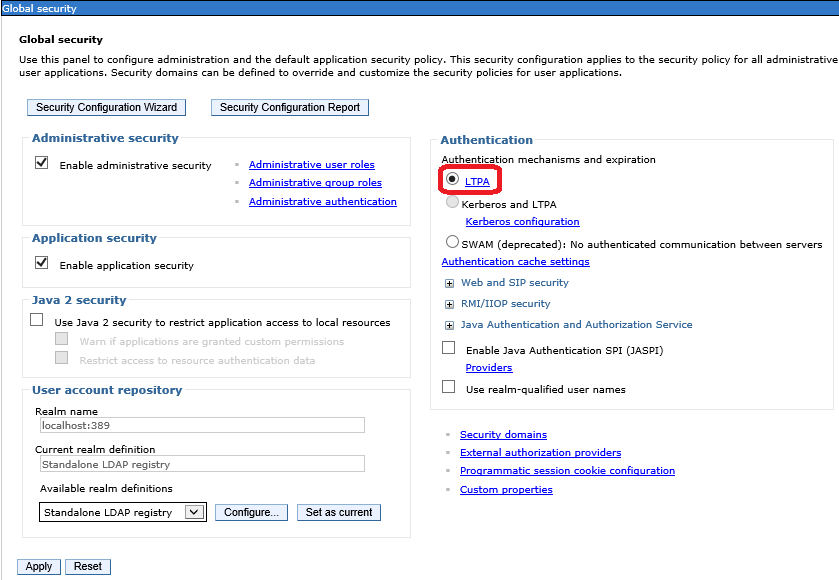
Thus, you will need to configure LTPA in order to enable session sharing between IBM Content Navigator and Arender Web-UI:
- Export the LTPA CPE key
In WebSphere Administration Console of the CPE, navigate to Security > Global Security, under Authentication, click LTPA
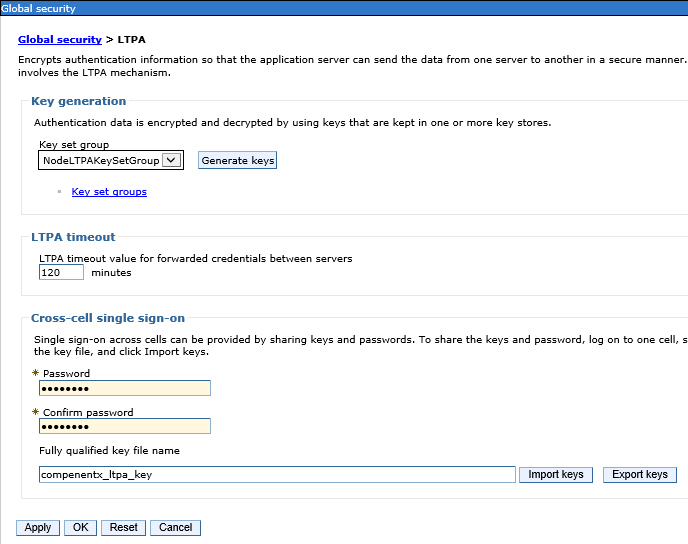
- Specify a password, a filepath, and click "Export keys"
- Import the LTPA CPE key in the ARender JVM
Copy the key in hte ARender Web-UI server.
Then import this key in ARender, like below:
- Using the WebSphere Administration Console, navigate to Security > Global Security, under Authentification, click LTPA
- Fill in the same password you entered when exporting the keys
- Specify the path where you copied the keys
- Click Import keys
- Save the modifications
Session invalidation when switching user
Since ICN version 3.0.6, if you change of user on the same session then you will get an error message when opening a document with the new user which will look like this:
Error 500: com.ibm.websphere.servlet.session.UnauthorizedSessionRequestException: SESN0008E: A user authenticated as user:localhost:389/CN=userB,CN=Users,DC=ircem,DC=dev has attempted to access a session owned by user:localhost:389/CN=userA,CN=Users,DC=ircem,DC=dev
The session of the user userA was not invalidated when he disconnected, which will cause the error when opening a document by user userB. There is a property to add in a WebSphere console which will make it possible to invalidate a session on which an unauthorized request is made. This session invalidation will allow the recovery of the correct username by ARender.
Adding the property
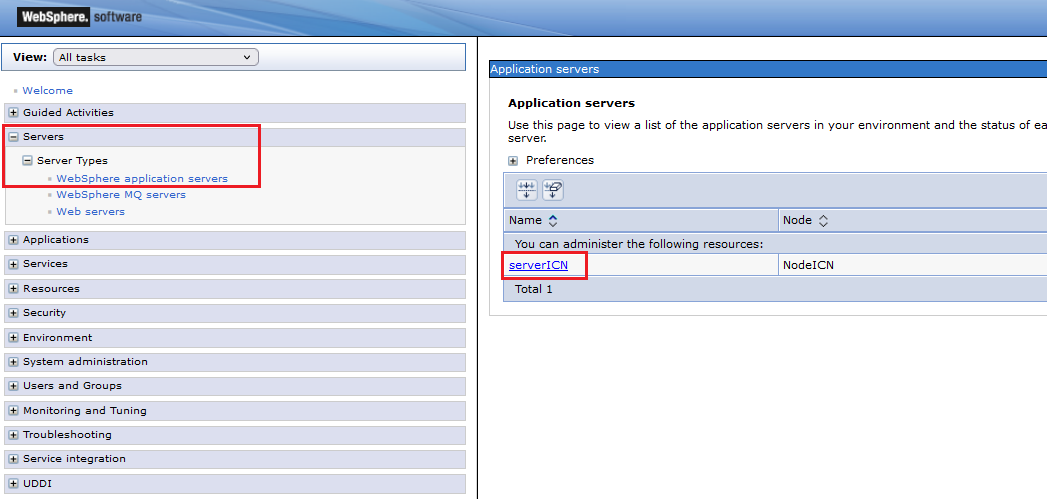
- Go to your websphere console then in the menu go to servers -> server types -> websphere application servers.
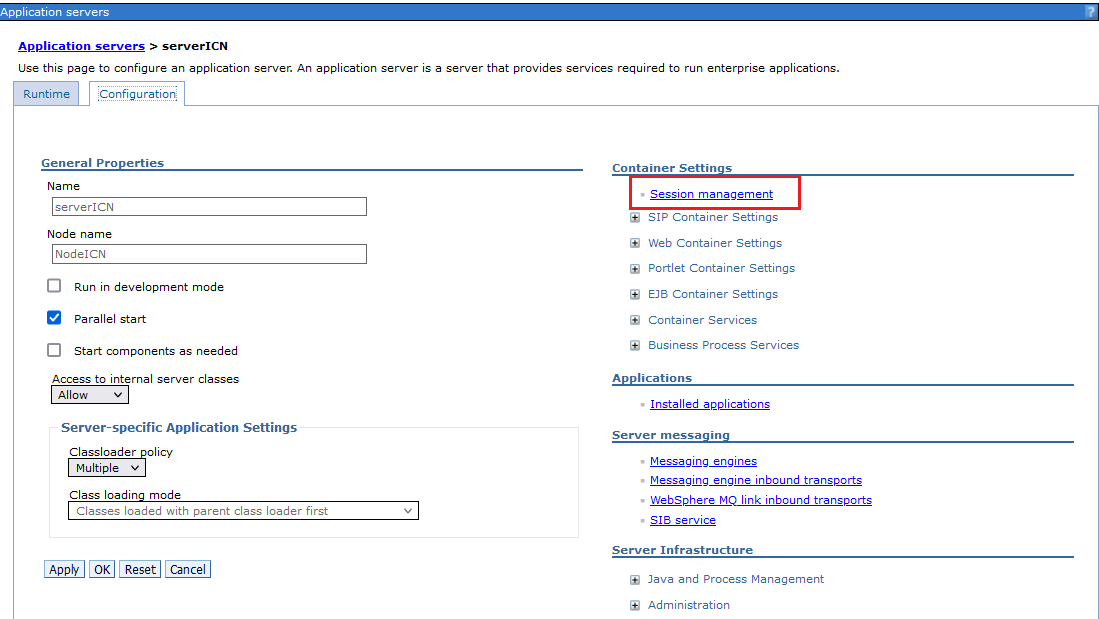
- Select the server on which you want to make the modification. In our example, we choose serverICN
- In Container settings go to Session management.
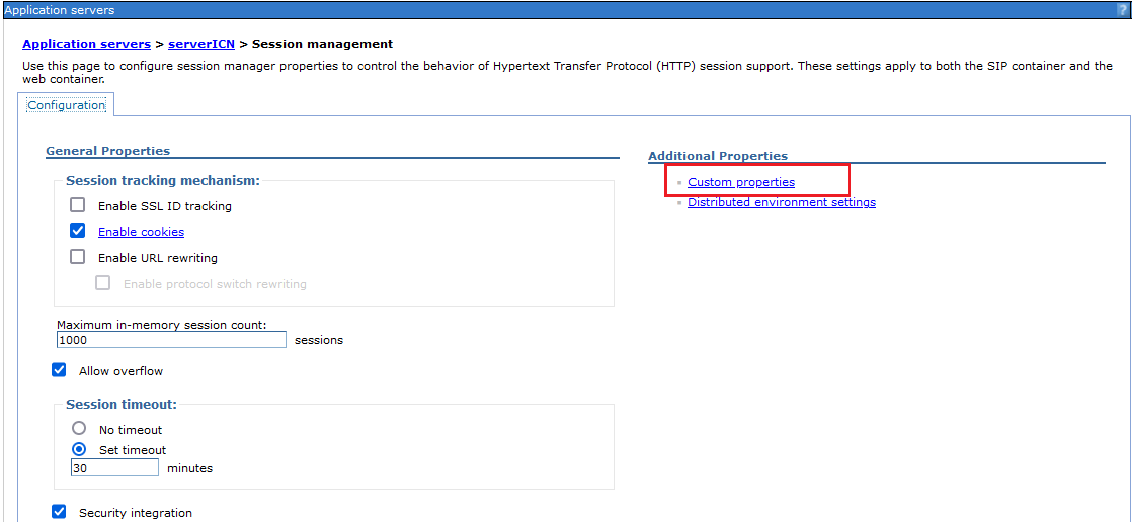
- In Additional properties, click on custom properties.
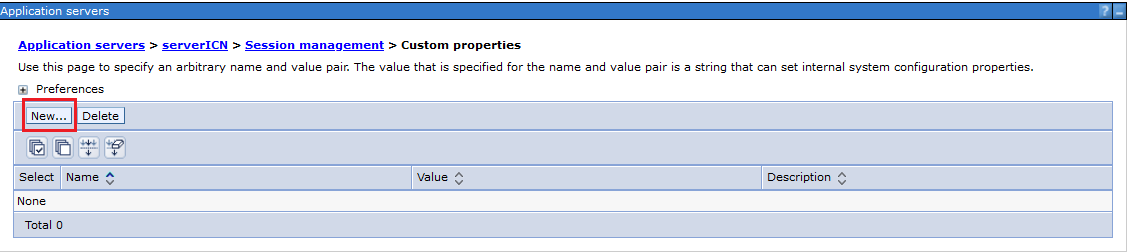
- Click on New... to add the property.
- Add the property InvalidateOnUnauthorizedSessionRequestException with the value true so that it is applied.
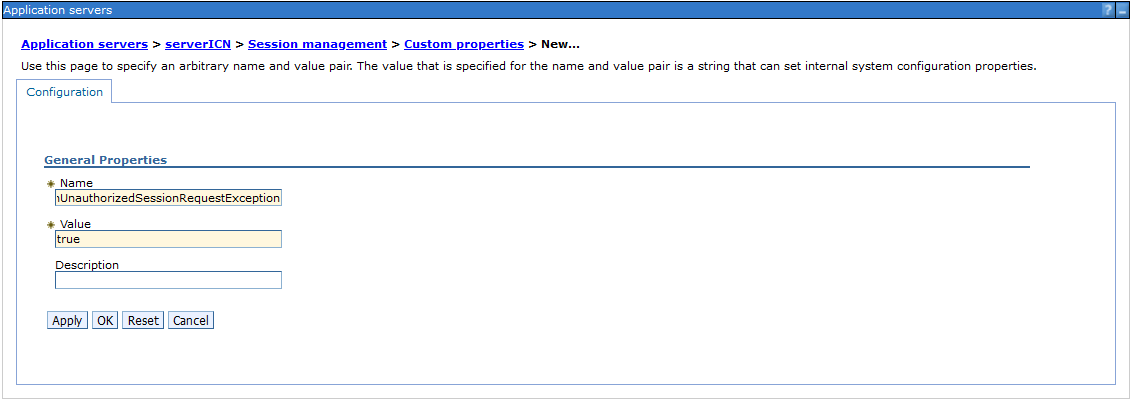
- You must then click on Ok then save. Restart your Filenet services to take this property into account.
Integration of the arender plugin for FileNet
A specific plugin has been implemented to integrate ARender within ICN. Nota: ICN connector uses mixedObjects syntax.
Connect to Content Navigator.
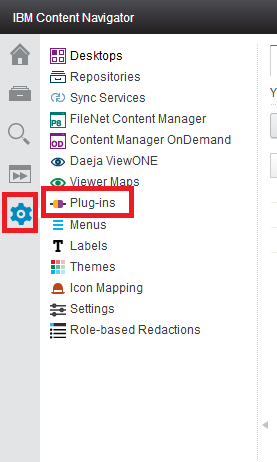
Go to the ‘Administration View’ and click on ‘Plug-ins’
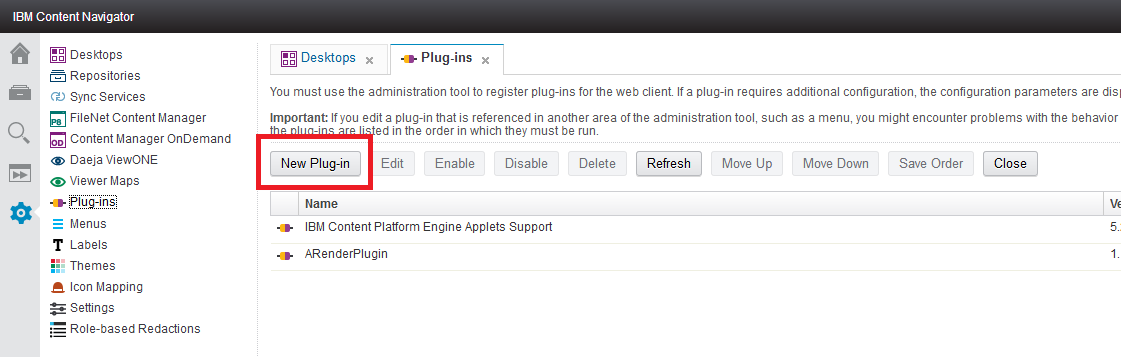
Click on the button "New Plugin-in".
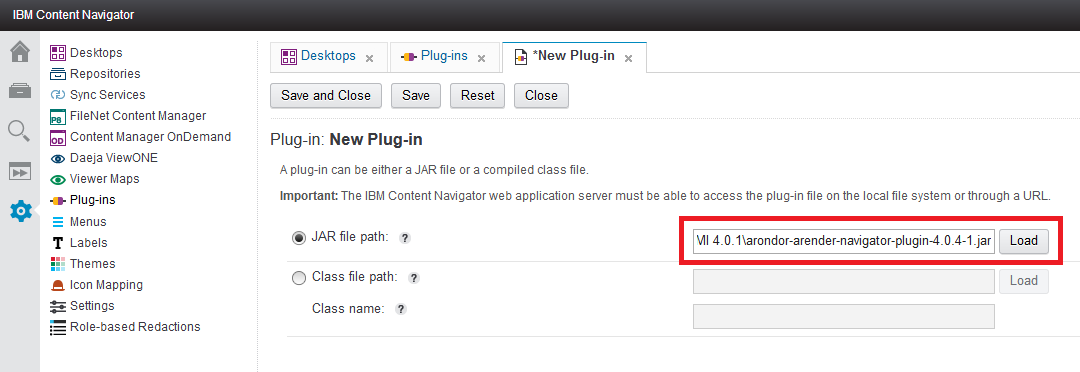
Enter the JAR file path and click on ‘Load’.
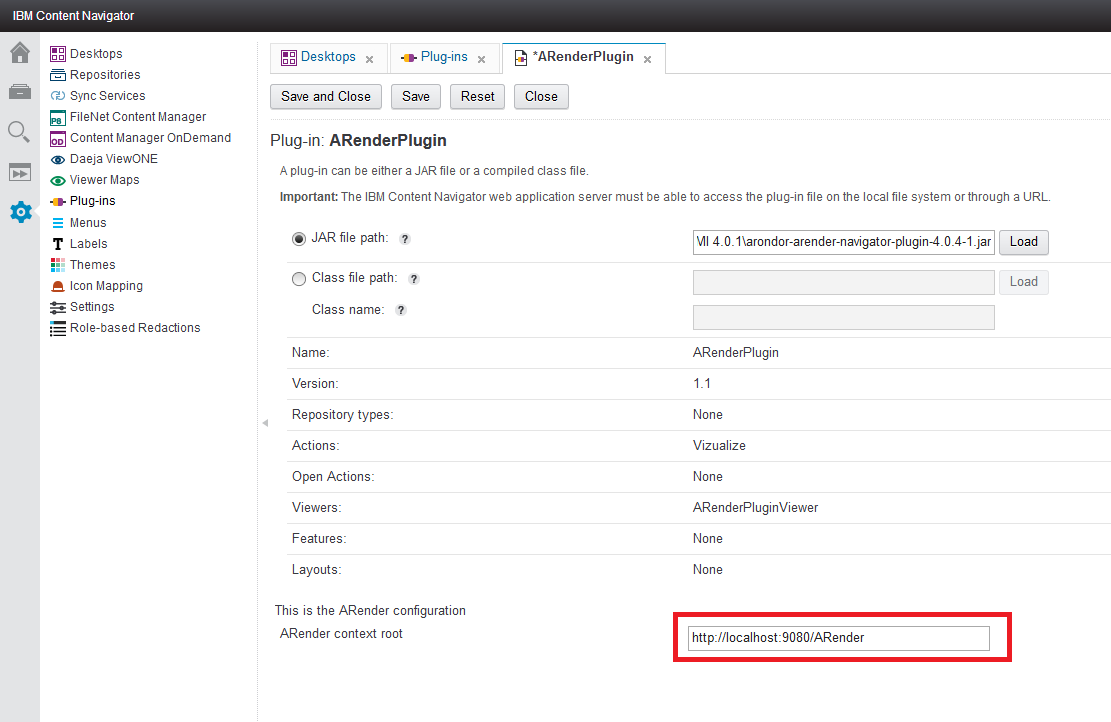
Fill ‘ARender context root’ field with ARender’s address (hots + port + context root). Like below:
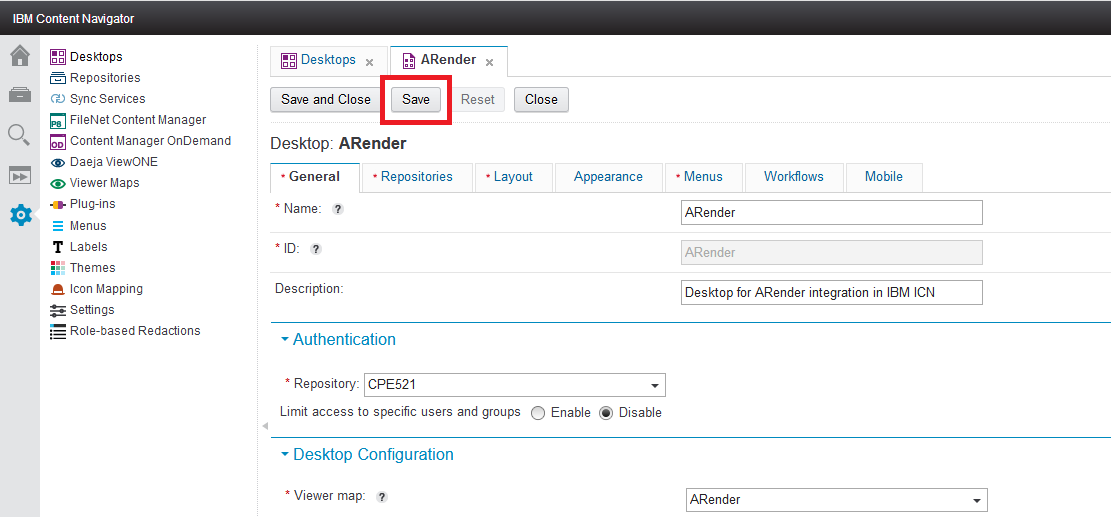
To use this Map, you just need to link it to a Desktop (Desktop tab -> Edit the desktop -> Select the Map in the Viewer Map list)
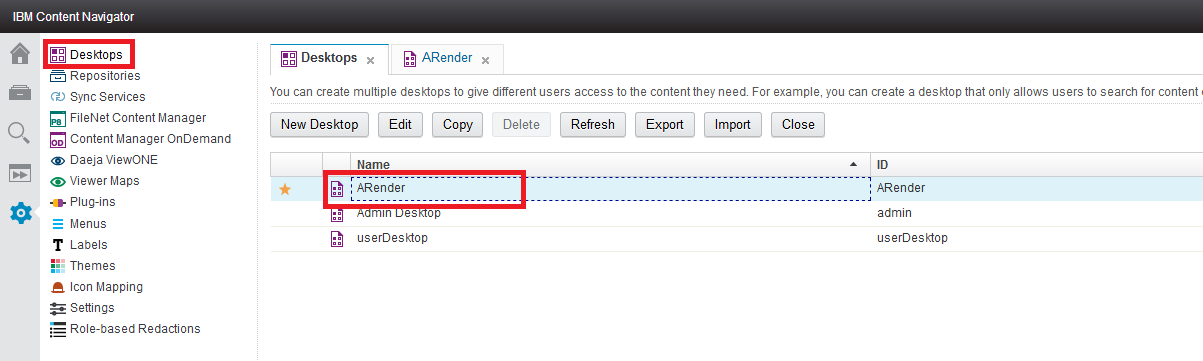
And finally, click on "Save".
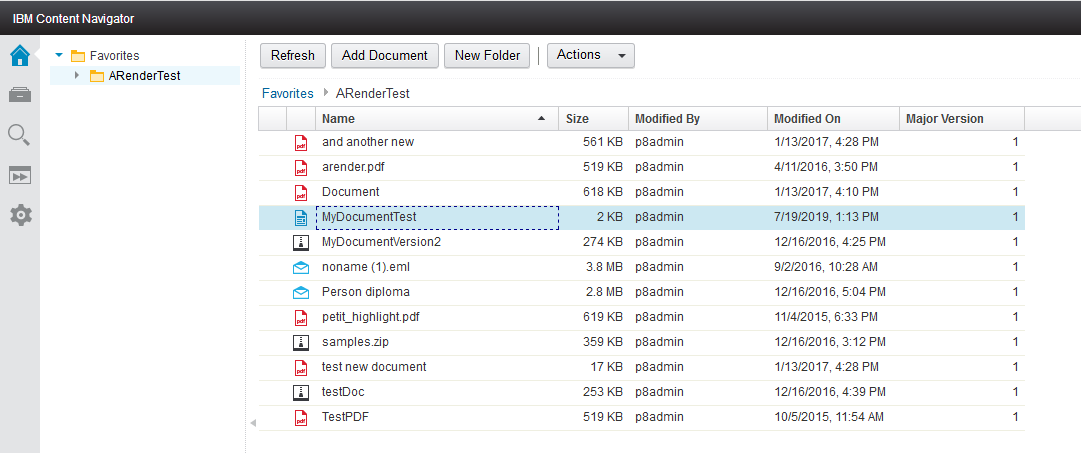
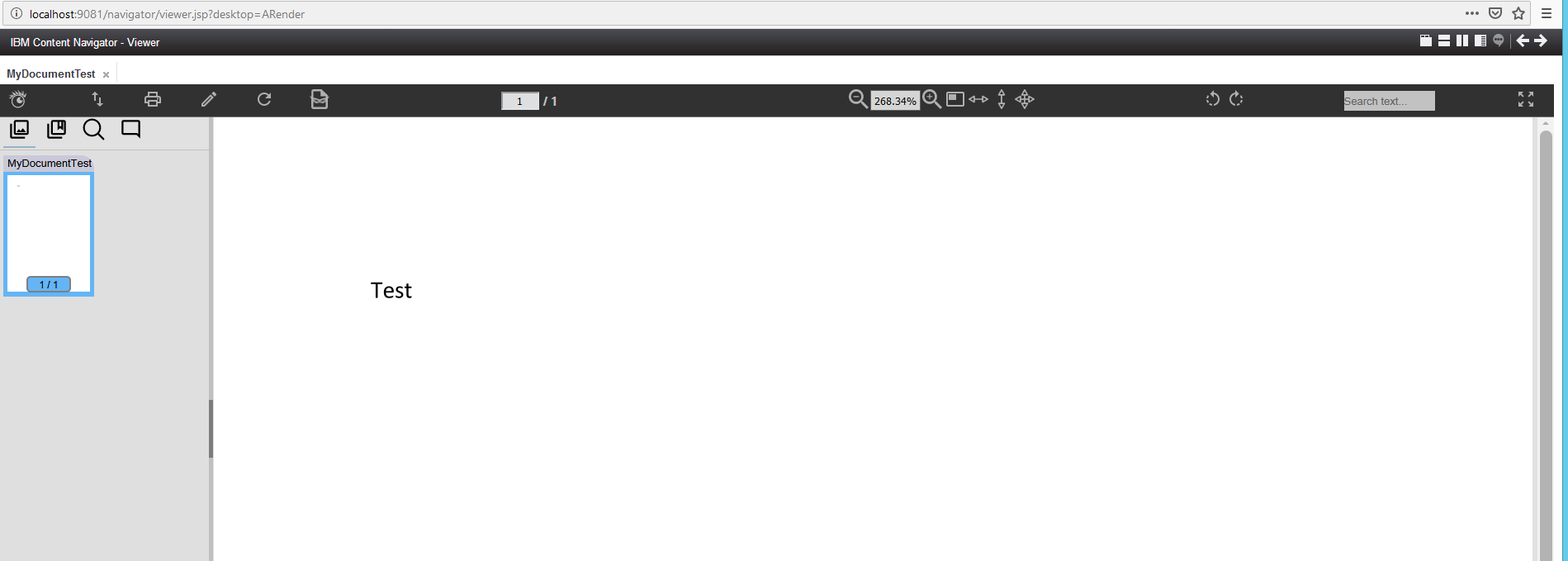
You can now restart your application servers and attempt to open a file in FileNet.
Use ARender advanced features directly from ICN
End-users can use ARender Compare and Document Builder features directly from ICN.
Create a dedicated ICN menu to show ARender advanced feature
- In ICN, go in the Administration menu
- Select Menus
- Search the Menu named Default document context menu
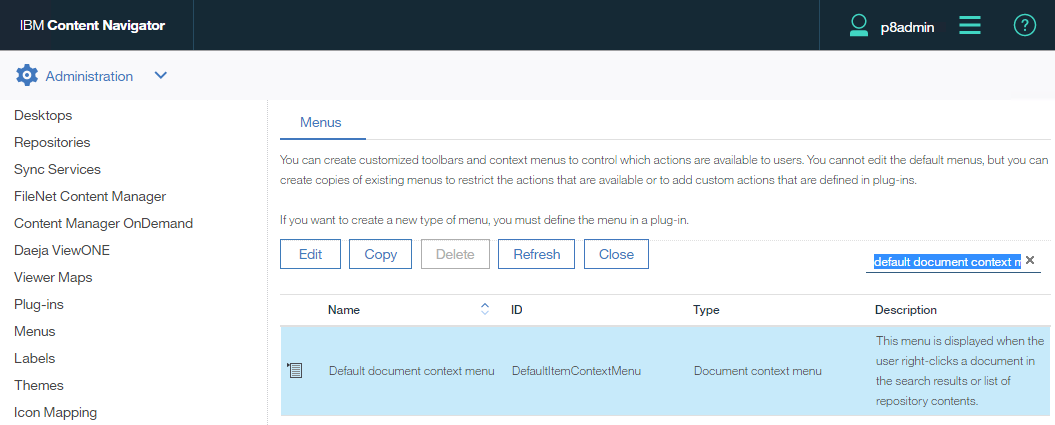
- Right click on this menu and select Copy
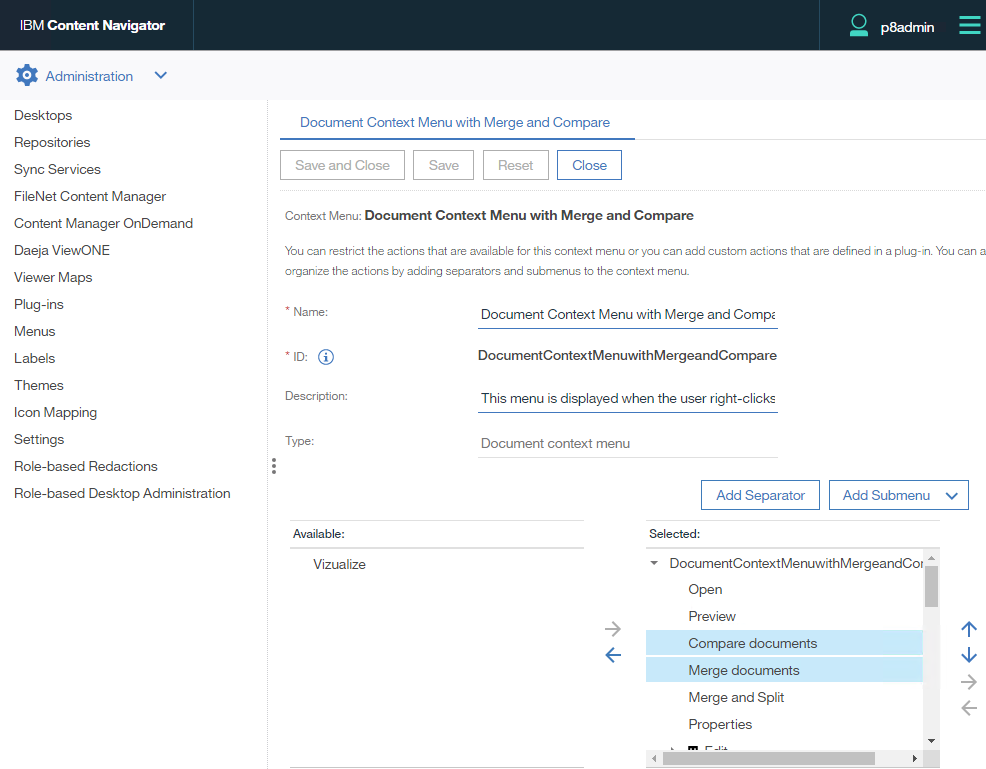
- Define a Name and a description to the new Menu
- In the Available box select Compare documents and/or Merge documents action and add them into the Selected menu on the right
Add the created menu to the ICN Desktop
- In ICN, go in the Administration menu
- Select Desktops
- Select the Desktop to update
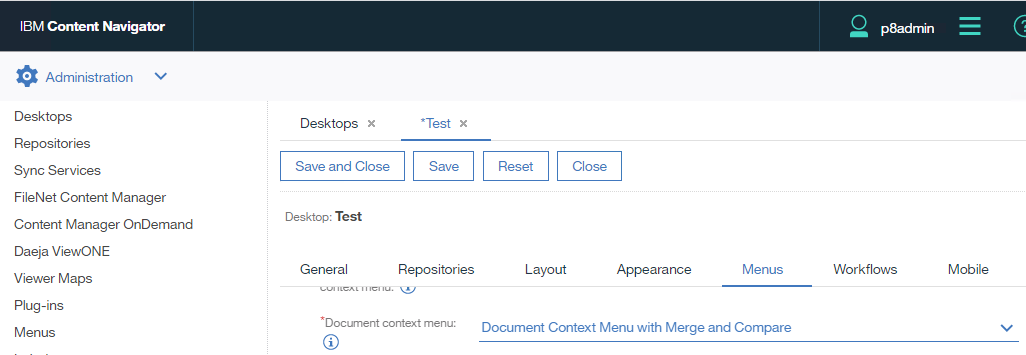
- Select the tab Menus
- Search for the Menu named Document context menu
- In its drop-down list value, select the menu you created above
Use ARender compare feature
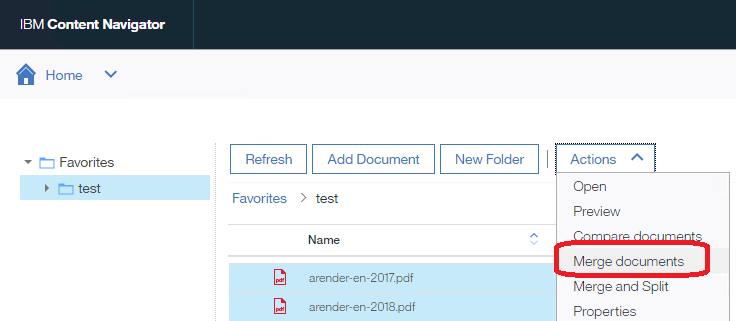
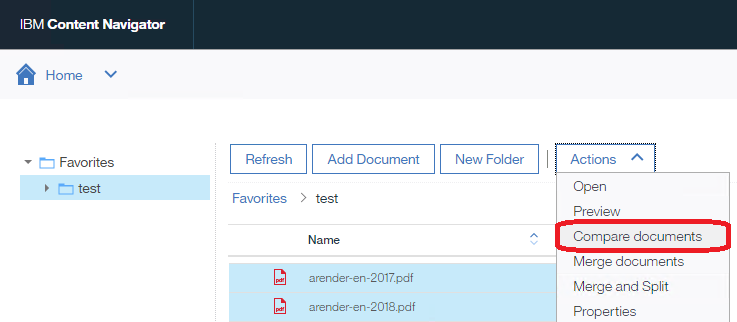
To compare document, you have to select two documents and select Compare documents from ICN Action menu or using right click
Use ARender Document Builder feature
To merge and split documents, you have to select at least one document and select Merge documents from ICN Action menu or using right click