Content Manager
Below a detail on how to deploy ARender for Content Manager.
In our example, we are deploying the presentation server in an environment with:
- Operating System: Windows Server 2012 R2 Standard
- Content Manager 8.6
- Websphere 9.0.5.0 Application Server (you can also use Apache Tomcat 8+)
- ARender HMI version 4.8.21
Retrieve the ARender HMI archive
Using the username and password beforehand provided, you can retrieve the web application in EAR format here.
WebSphere requirements
The version of websphere used here must have java 8 installed and activated. If you like, please follow the instructions here.
Deployment in WebSphere
-
Open a WebSphere console at https://serveur_websphere:9043/ibm/console
-
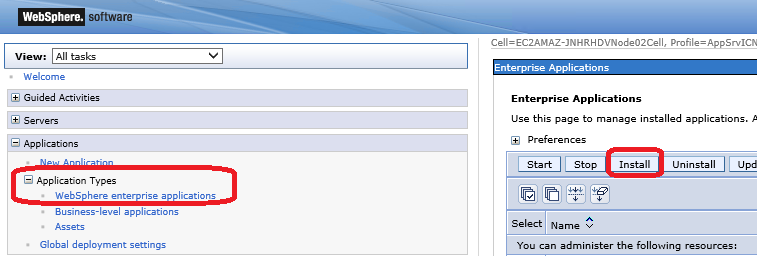
Go in the "Applications" tab, then click on "WebSphere enterprise applications"
-
To launch installation, click on "Install"
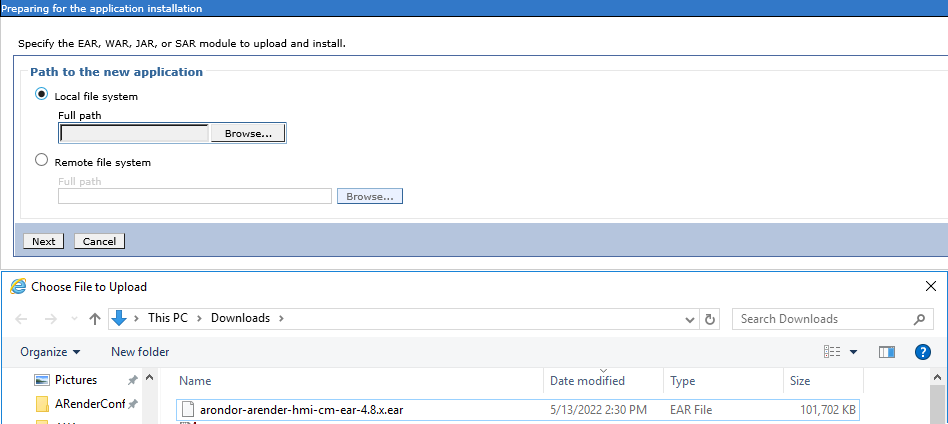
- Choose the EAR path to deploy and click on "Next"
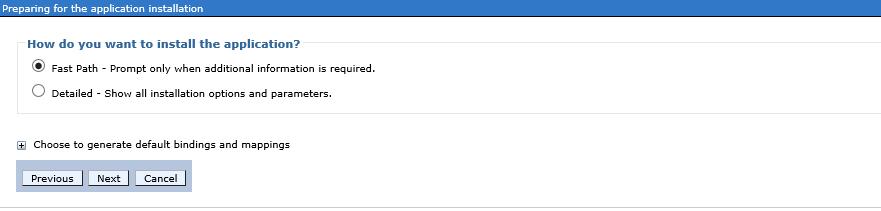
- To accept default parameters, click on "Next"
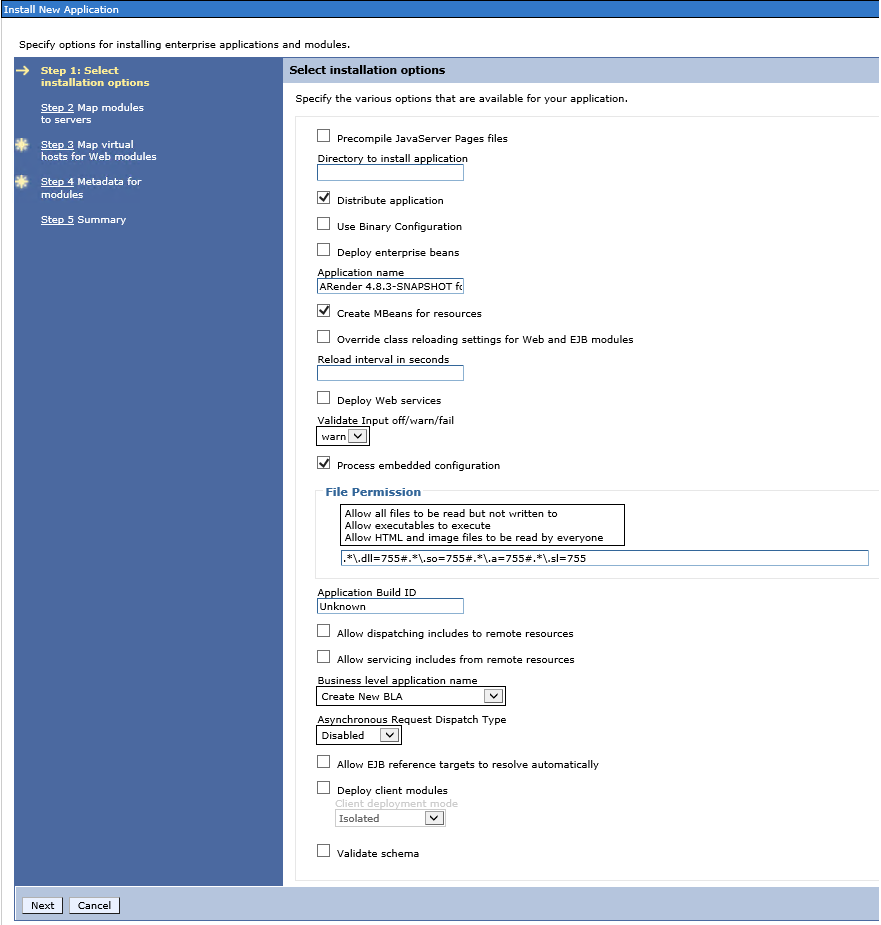
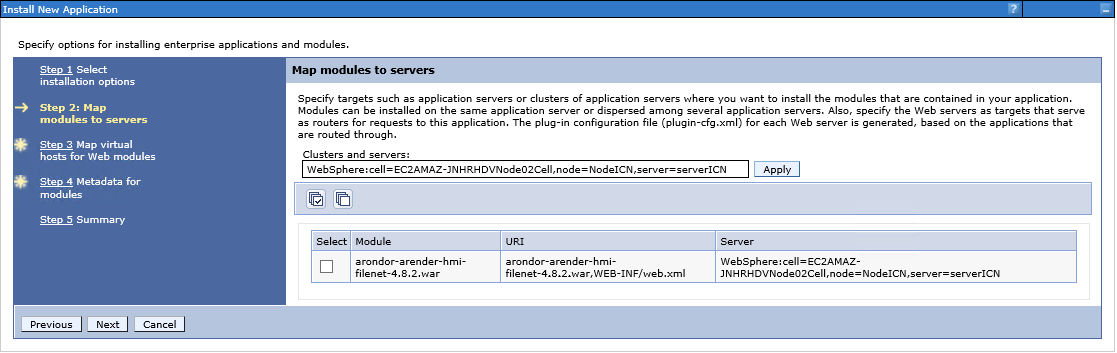
- Select webserver(s) and/or server(s) of the Workplace, then click on "Next"
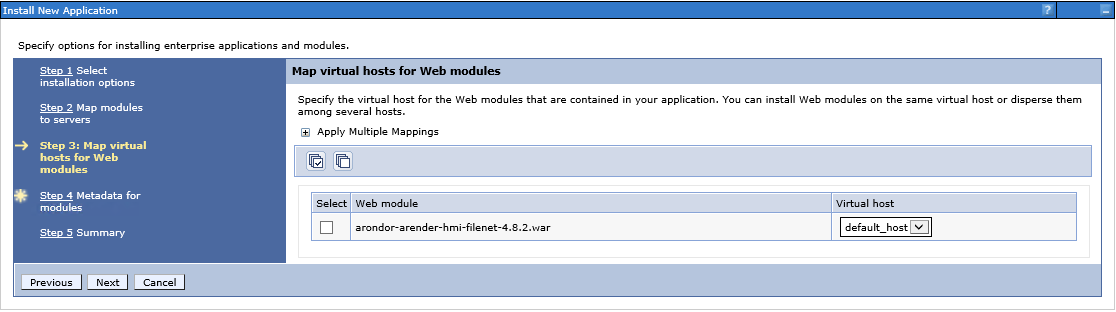
- To accept the parameters by default (virtual host: default_host), click on "Next"
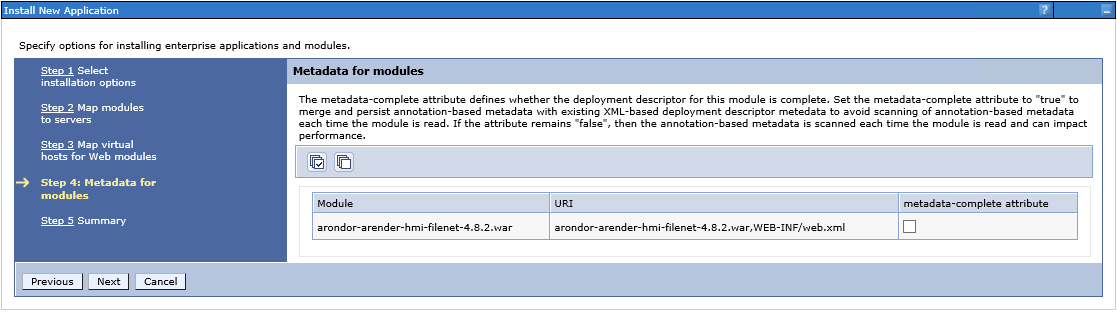
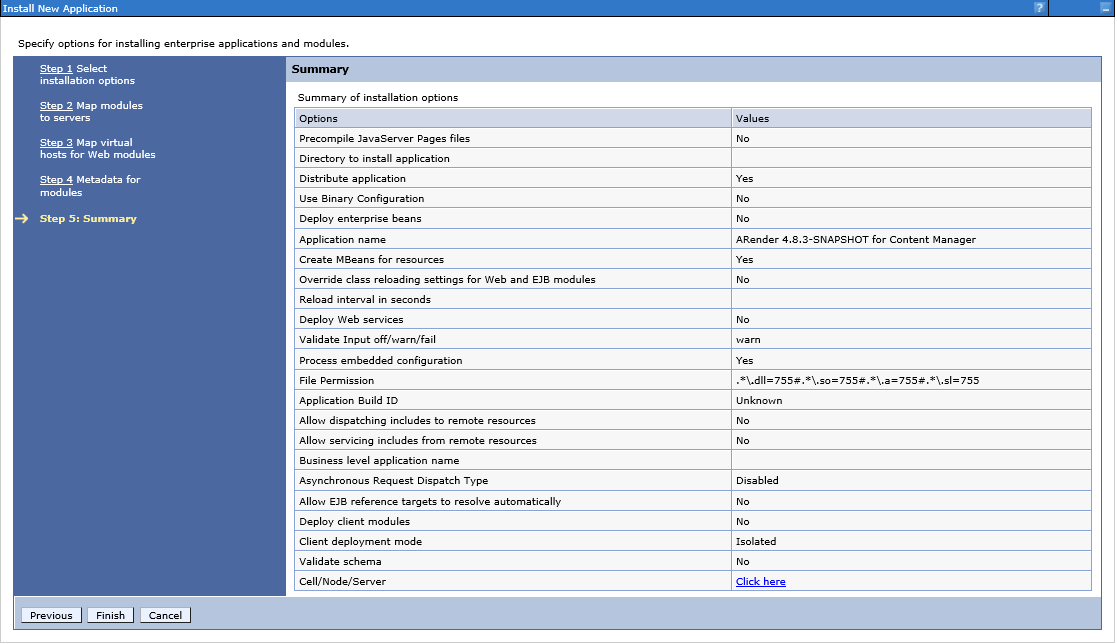
- In recap window, click on « Finish » to begin the installation with these parameters after checking them
Post setup
Libraries loading order
- Since 4.8.9
- Before 4.8.9
Nothing to configure.
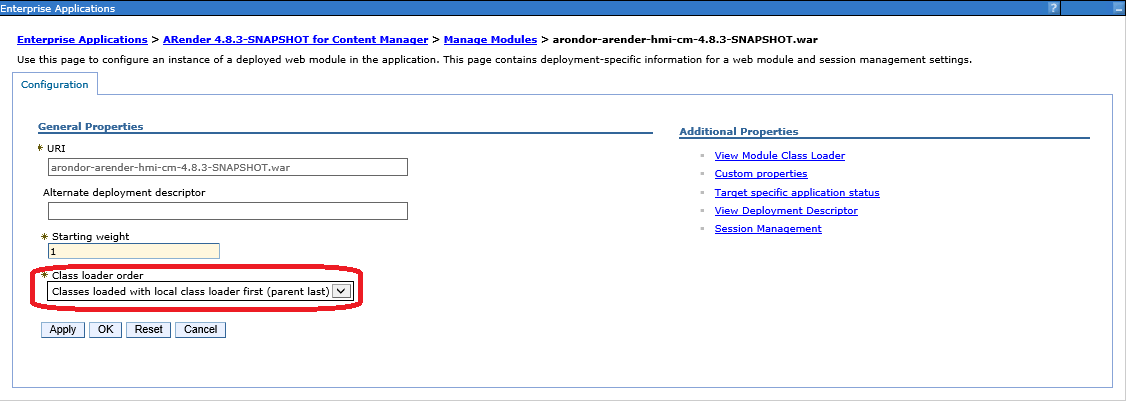
Websphere must be configured in parent-last which means it has to load its libraries after ARender.
-
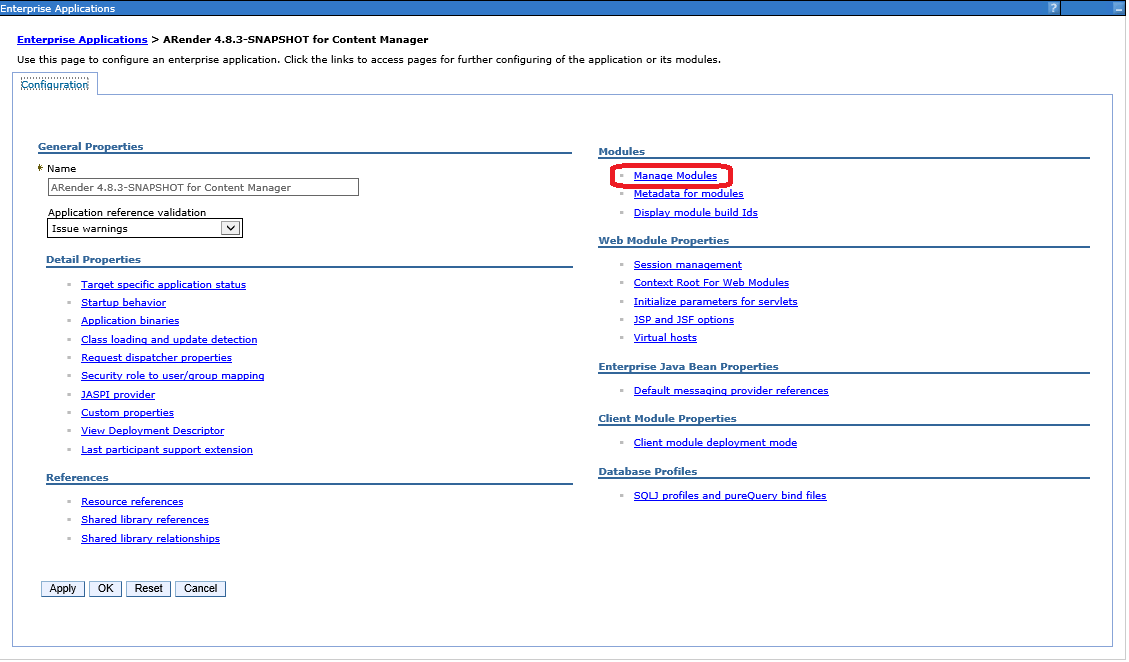
In the application list click on ARender 4.8.X for Content Manager
-
Click on Manage Modules
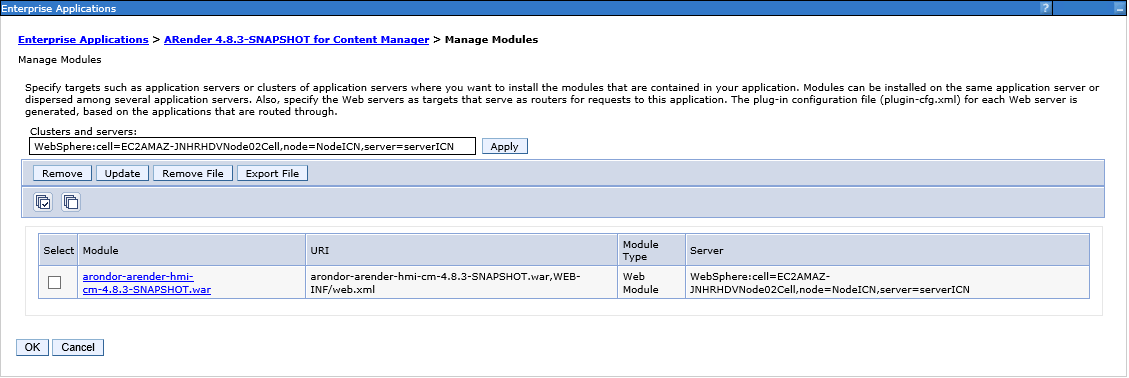
- Click on the WAR: arondor-arender-hmi-cm-4.8.X.war
- Select the parent-last configuration in the Class loader order drop-down list
-
Click on "OK" and save the modifications
-
Start ARender application
ARender deployment for Content Manager is complete
You can now access a file via a URL formed like below:
http://localhost:9080/ARender/?docid=86%203%20ICM8%20ICMNLSDB7%20NOINDEX59%2026%20A1001001A16B08B91035E0007718%20A16B08B91035E000771%2014%201000