Standalone
Below a standalone installation of the ARender Web-UI.
note
To install on IBM FileNet systems, you can skip this page and directly go to: ARender installation on IBM FileNet.
warning
Since ARender 2023.0.0, the deployment of ARender UI has changed. Please check the detailed upgrade documentation here.
Prerequisites
Minimal hardware
| Category | Minimum | Advised |
|---|---|---|
| Number of Web-UI server(s) | 1 | The number of rendition server divided by two (example 4 rendition servers, therefore 2 Web-UI servers) |
| RAM | 1GB | 2GB |
| CPU type | 64Bits | 64Bits |
Software
| Software | Requirement |
|---|---|
| Java Runtime | JRE 1.8 64 bits Minimum, OpenJDK 11 advised. Oracle JDK are supported, JRE IBM J9 and java 17 are not supported. |
| ARender Rendition up & running | The Rendition health page should be green, see the related documentation. If it is not the case, please install the Rendition following the related documentation. |
Installation
Download installation files
- Using the username and password beforehand provided (contact arender-sales@arondor.com if you want an access)
- Download the zip file:
- Extract the zip content in the folder of your choice. (Let's call it [Web-UI-folder])
The zip file contain web-ui service installation script but also removal and startup scripts
Start ARender Web-UI
- Open a console and start ARender Web-UI with the command below
tip
java -jar [Web-UI-folder]/arondor-arender-hmi-spring-boot-2023.19.0.jar
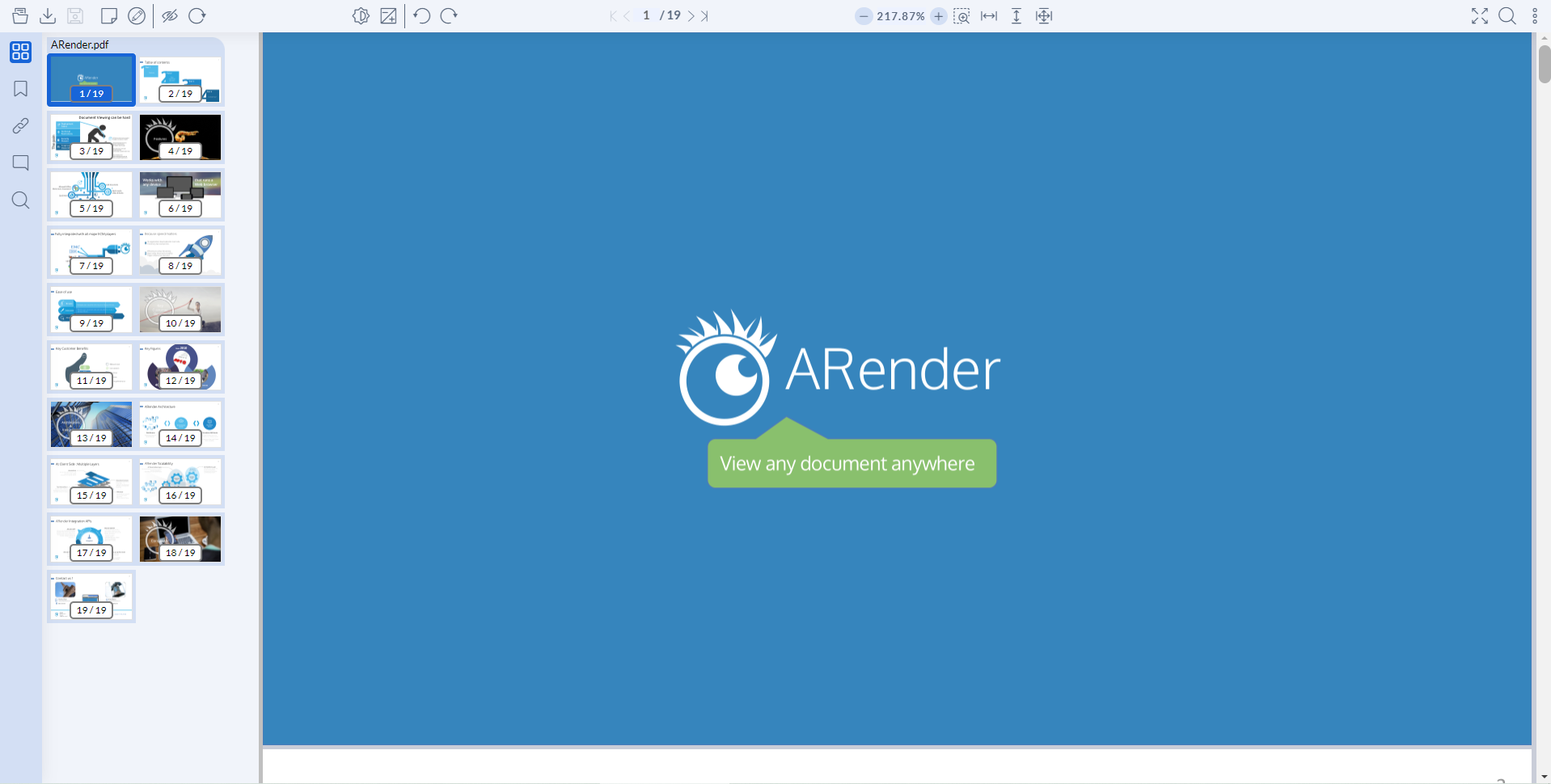
Open a browser new window
tip
Access to http://localhost:8080 via a web browser.
note
The URL to use should be built like this: http://{Web-UI-HostName}:{port-Web-UI}/{ARenderContext}:
{Web-UI-HostName}: the host name of the application server{port-Web-UI}: the application server port
No local Rendition up&running
You may have encountered the below error notification.
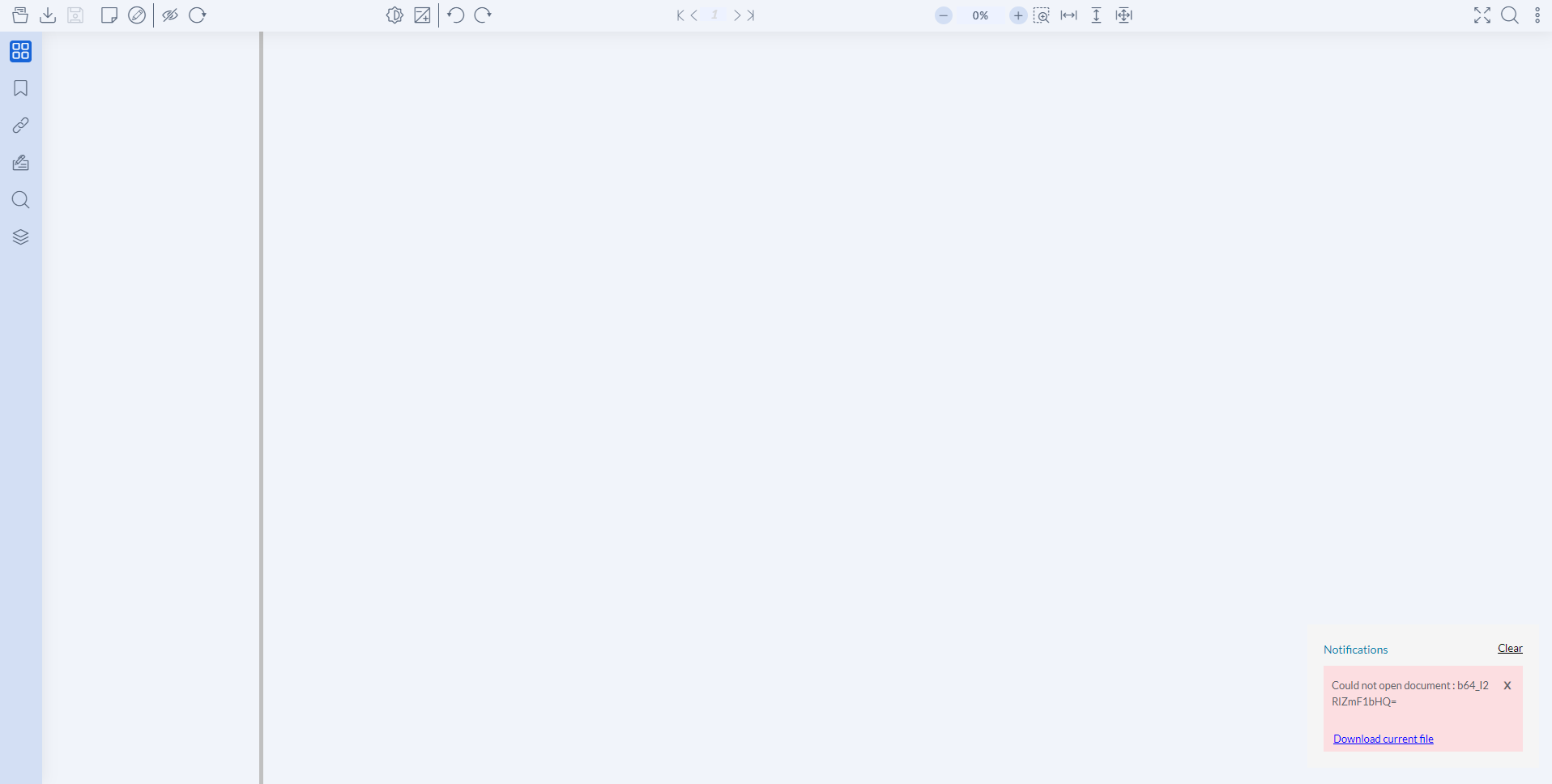
It may mean that:
- Either the local Rendition is not installed/started
- In that case please go back to the following documentation the Rendition installation documentation.
- Either the Rendition is installed on another server
- In that case, please check to the documentation about arender.server.rendition.hosts property here: ARender Web-UI configuration.
Install ARender Web-UI as a service
- Open a console with Administrator rights,
- Go to the [Web-UI-folder]
- Execute the right installation script like below:
- Windows
- Linux
$> .\ARenderHmiService-install.bat
$> ./ARenderHmiService-install.sh
The service named ARenderHMIService should be created and started on port 8080.