JNDI Configuration for ARender Web-UI
JNDI configuration is only compatible for ARender for FileNet in WebSphere. Other deployment compatibility will come later.
Prerequisite
- arender version >= ARender 3.1.9
Benefits of using JNDI with ARender Web-UI
JNDI configuration simplifies ARender Web-UI deployment and update.
Since the version 3.1.9 of ARender, the server configuration is externalized in the property file: arender-server.properties (located in the folder WEB-INF/classes of ARender Web-UI). It allows the use of JNDI in ARender to define the configuration directly in the application server.
Below, you will find the configuration detail for each application server.
Apache Tomcat JNDI configuration
-
Create a property file (example:
customer-<integration_type>.properties, with<integration_type>being the type of your current integration ; vanilla,filenet,alfresco) and save it in the folder of your choice (Example: C:\Dev\apache-tomcat-8.5.13\customConfiguration). -
Edit this file with the wanted specific configuration (available properties are in arender-server.properties):
arender.server.rendition.hosts=http://localhost:8761/ -
Open the Apache Tomcat configuration file context.xml (located under the conf folder)
-
Edit this file to add an environment variable propertiesFileLocation. Its value is the path of the folder containing the property file
customer-<integration_type>.propertiesdefined above. Example:
<Context>
  <Environment name="propertiesFileLocation" value="C:\Dev\apache-tomcat-8.5.13\customConfiguration" type="java.lang.String" override="false"/>
</Context>
- Restart the application server.
WildFly JNDI configuration
-
Override web.xml configuration
<!-- Comment the below configuration -->
<!--
  <resource-ref>
  <res-ref-name>propertiesFileLocation</res-ref-name>
  <res-type>java.lang.String</res-type>
</resource-ref>
--> -
Override default JNDI context
<!-- Comment the below configuration -->
<!--<jee:jndi-lookup id="propertiesFileLocation" jndi-name="java:comp/env/propertiesFileLocation" expected-type="java.lang.String" default-value="#{systemProperties['user.home']}/ARenderConfiguration/"/>-->

<!--Add the below Wildfly configuration -->
<jee:jndi-lookup id="propertiesFileLocation" jndi-name="java:global/propertiesFileLocation" expected-type="java.lang.String" default-value="#{systemProperties['user.home']}/ARenderConfiguration/"/> -
Create a property file (example: customer-<integration_type>.properties) and save it in the folder of your choice (Example: C:\Dev\apache-tomcat-8.5.13\customConfiguration).
- Edit this file with the wanted specific configuration (available
properties are in arender-server.properties):
customer-<integration_type>.properties
arender.server.rendition.hosts=http://rendition-server:8761/` - Edit this file with the wanted specific configuration (available
properties are in arender-server.properties):
-
Open the Wildfly configuration file standalone.xml (located under the configuration folder)
- Edit this file to add a binding propertiesFileLocation. Its
value is the path of the folder containing the property file
customer-<integration_type>.propertiesdefined above. Example:
<subsystem xmlns="urn:jboss:domain:naming:2.0">
  <bindings>
    <simple name="java:global/propertiesFileLocation" value="C:\Dev\customConfiguration\" type="java.lang.String"/>
  </bindings>
  <remote-naming/>
</subsystem> - Edit this file to add a binding propertiesFileLocation. Its
value is the path of the folder containing the property file
-
Restart the application server.
Websphere JNDI configuration
- Create a property file (example:
customer-<integration_type>.properties) and save it in the folder of your choice (Example: C:\Dev\apache-tomcat-8.5.13\customConfiguration). - Edit this file with the wanted specific configuration (available properties are in arender-server.properties):
arender.server.rendition.hosts=http://rendition-server:8761/
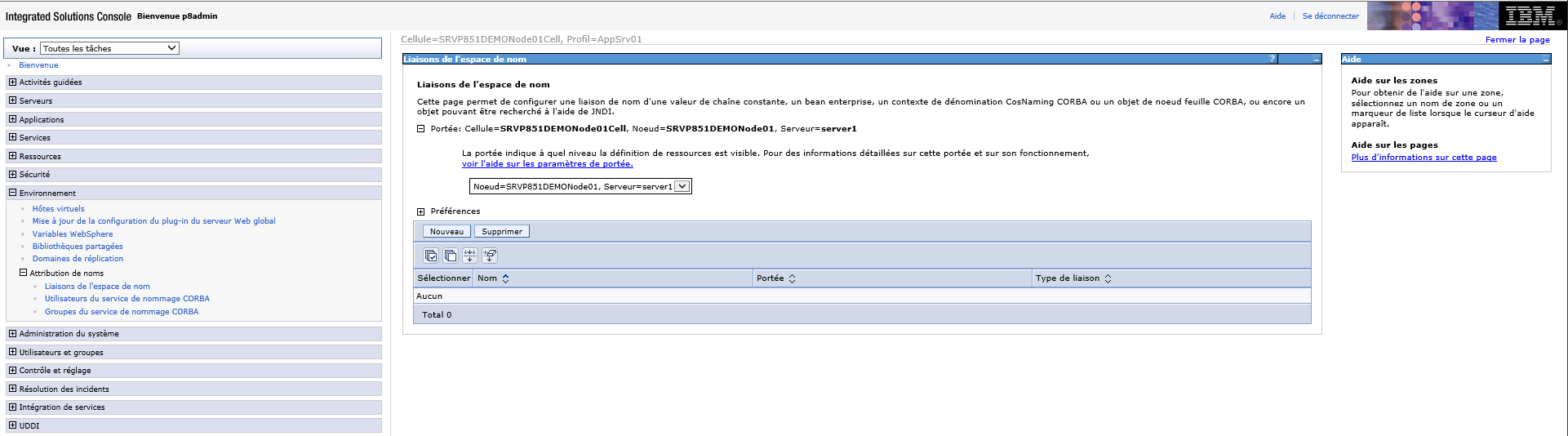
- Open Websphere console and go to: Environment -> Naming -> Name space bindings:
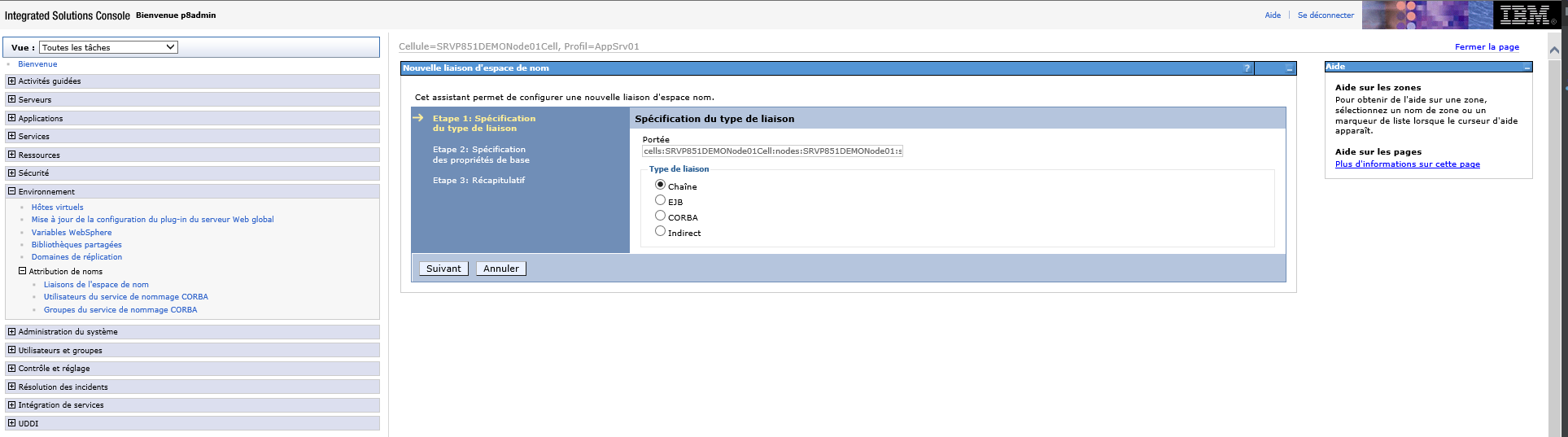
- Click on New, then select String and click on Next:
-
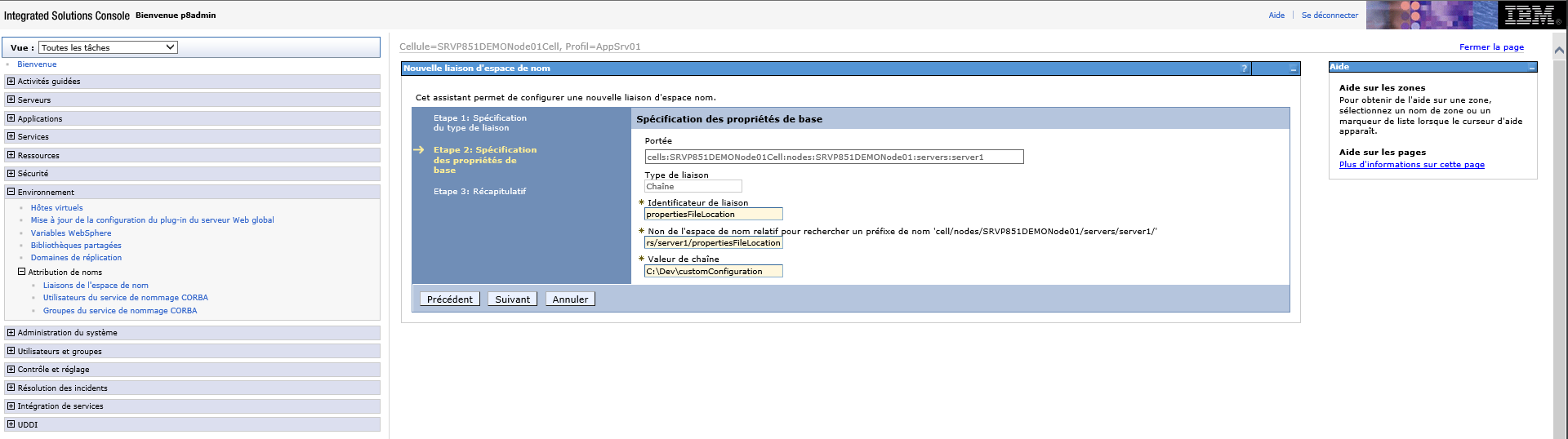
Then fill the fiels like below:
Binding identifier: propertiesFileLocation
Name in namespace relative to lookup name prefix 'cell/node/nodename/servers/serverName (replace nodename and server name by your own):
cell/node/nodename/servers/serverName/propertiesFileLocation
String value: Its value is the path of the folder containing the property file
customer-<integration_type>.propertiesdefined above.
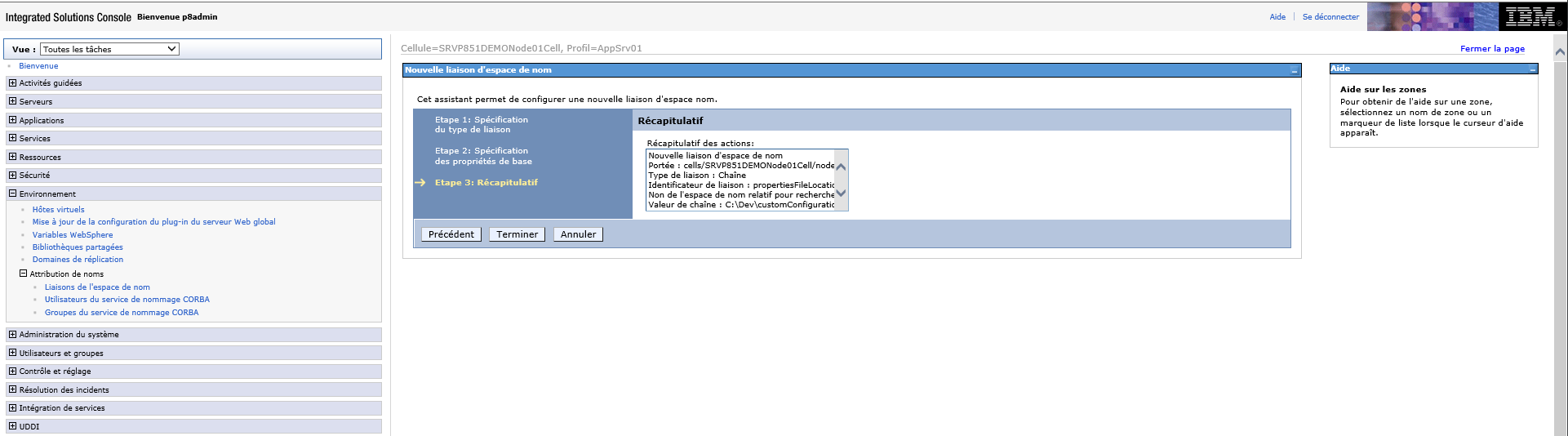
- Finally click on Finish
- Restart the application server.