Installation
If upgrading from version 4.8 to version 2023.0, please refer to the detailed upgrade documentation here.
Installer Setup
We strongly recommend installing ARender using the all-in-one installer, as it includes all necessary third-party components in validated versions. This method ensures the most reliable setup experience. The only requirement is a valid JDK or JRE (see Requirement).
Retrieving the installer
Use the provided credentials (contact arender-sales@arondor.com for access) to download the Rendition installation JAR:
Installation process
Run the following command to start the installation:
$> java -jar rendition-engine-installer-2023.18.0-rendition.jar
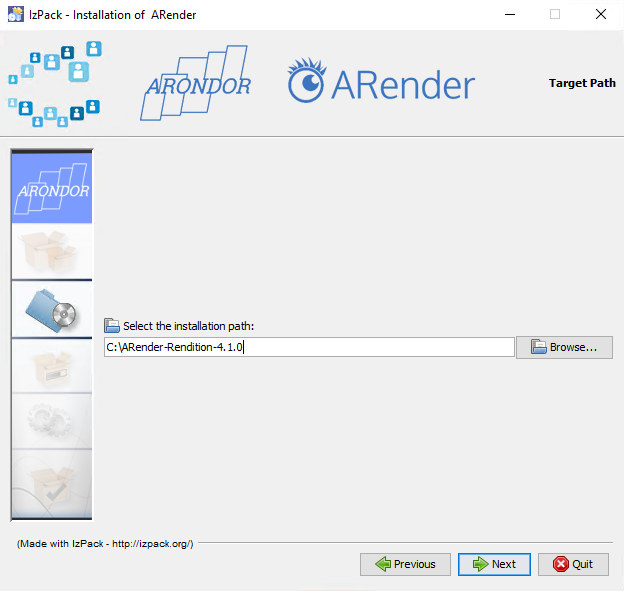
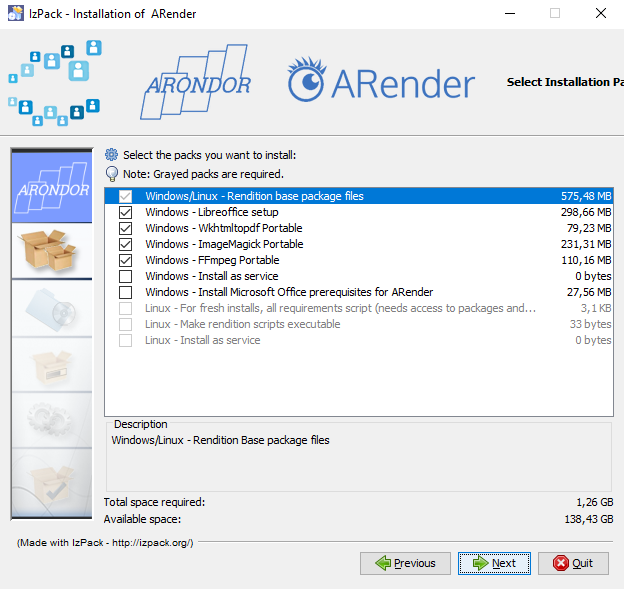
Below is an example of the installation steps on Windows:
- Select the installation directory:
- Select the components to install. Unselected items must be installed manually:
- Completion screen:
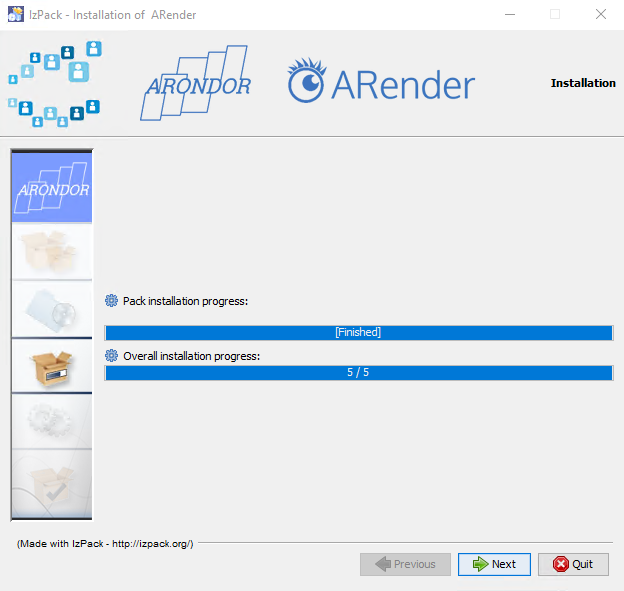
Installed software, except LibreOffice, will be located in the third_party software folder:

Congratulations, the installation is complete!
Alternative ARender Installation Methods
Silent installation
Retrieve the configuration file
docs/install/install-rendition.properties
Installation configuration
Various options can be added:
| Properties | Mandatory/Optional | Function | Possible value |
|---|---|---|---|
| INSTALL_PATH | Mandatory | Installation Path | Absolute path |
| arender.silent.install | Optional | Set to true on silent install (-options) | True/false |
| arender.install.as.service | Optional | Install as service | True/false |
| arender.install.libreoffice | Optional | Libreoffice setup | True/false |
| arender.install.wkhtmltopdf.portable | Optional | Install Wkhtmltopdf in portable mode | True/false |
| arender.install.imagemagick.portable | Optional | Install ImageMagick in portable mode | True/false |
| arender.install.ffmpeg.portables | Optional | Install FFmpeg in portable mode | True/false |
| arender.install.msoffice.prerequisites (Windows) | Optional | Install Microsoft Office prerequisites for ARender | True/false |
As example, for a silent installation, set arender.silent.install=true in install-rendition.properties.
Silent Installation Command
For an installation in a silent mode, an option must be passed as a parameter when launching the installation with the jar.
$> java -jar rendition-engine-installer-2023.18.0-rendition.jar -options install-rendition.properties
Zip Packaging Installation
Third-Party requirements
Install the following additional software:
We recommend using Chocolatey to ease the installations: https://chocolatey.org/
We recommend installing these third parties from the official OS package distribution.
| Document Type | Software | Requirement |
|---|---|---|
| Office Documents | LibreOffice or Microsoft Office | LibreOffice 5+ (ensure libGL.so.1 for RHEL/CentOS 6). MS Office 2013+ recommended. |
| Images | ImageMagick | ImageMagick 7+ (under Windows, validate that the binary named convert.exe is existing, if not, link it from magick.exe) |
| Mails and HTML | WKHtmlToPdf | wkhtmltopdf 0.12.5+ |
| Videos, Audios and GIFs | FFmpeg | FFmpeg 2.8.15+ |
Ensure third-party tools are in the server's PATH:
| Software | Variable that should be in the server PATH environment variable |
|---|---|
| LibreOffice | soffice |
| ImageMagick | magick (under Windows, validate that the binary named convert.exe is existing, if not, link it from magick.exe) |
| WKHtmlToPdf | wkhtmltopdf |
| FFmpeg | ffmpeg and ffprobe |
OS Configuration (Linux Only)
If the server lacks an X server, install xvfb and run:
$> echo -e '#!/bin/bash\nxvfb-run -a --server-args="-screen 0, 1024x768x24" /usr/bin/wkhtmltopdf -q $*' > /usr/bin/wkhtmltopdf.sh
$> chmod a+x /usr/bin/wkhtmltopdf.sh
$> ln -s /usr/bin/wkhtmltopdf.sh /usr/local/bin/wkhtmltopdf
Installation process
Extract the rendition-engine zip file to the desired directory. It is recommended to choose a directory close to the root of your file system to avoid Windows path length limitations.