Icons
Icon of ARender
Font Awesome
Description
Font Awesome is a font and icon tool based on CSS, Less and Sass. This tool offers a wide variety of free icons.
Use
To customize your icons with Font Awesome you need to change the value of the “class name” of your button starting with “icon” to Font Awesome icon class name.
It is important to change only the value starting with “icon”.
It is necessary to have the class name “fa” or “fas” or “fa-solid” in the class name of the icon. Otherwise the class name of font-awesome will not be taken into account.
You can find the available icons here: https://fontawesome.com/icons
Example
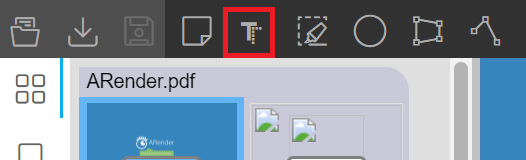
Example with the free text annotation button:
<bean id="addFreeTextAnnotationButton" class="com.arondor.viewer.client.toppanel.presenter.ActivableButtonPresenter">
  <constructor-arg value="addFreeTextAnnotationButton" />
  <property name="enabled" value="${topPanel.annotationMenu.freetext}" />
  <property name="className" value="standardButton fa-solid fa-border-top-left toppanelButton" />
  <property name="buttonGroup" value="topPanel" />
  <property name="buttonTitle">
    <ref bean="labels#addFreetextAnnotation"/>
  </property>
  <property name="visibilityForTopPanel">
    <ref bean="topPanelVisibilityMode" />
  </property>
  <property name="inactiveButtonHandler">
    <ref bean="quitAnnotationCreationAction" />
  </property>
  <property name="buttonHandler">
    <ref bean="freeTextCreationAction" />
  </property>
  <property name="supportShortCut" value="true"/>
  <property name="shortcut">
    <bean class="com.arondor.viewer.client.documentcontent.shortcuts.KeyboardShortCut" scope="prototype">
      <property name="ctrl" value="true" />
      <property name="key" value="${shortcut.annotation.freetext.key}" />
      <property name="enabled" value="${shortcut.annotation.freetext.enabled}" />
    </bean>
  </property>
</bean>
Material Design Icons
Description
Material Design Icons is a font and icon tool based on CSS, Less and Sass. This tool offers a wide variety of free icons.
Use
To customize your icons with Font Awesome you need to change the value of the “class name” of your button starting with “icon” to Font Awesome icon class name.
It is important to change only the value starting with “icon”.
It is necessary to add the prefix “mdi-” before the name of your icon. You must also add “mdi” before your new “class name”.
You can find the available icons here: https://materialdesignicons.com/
Example
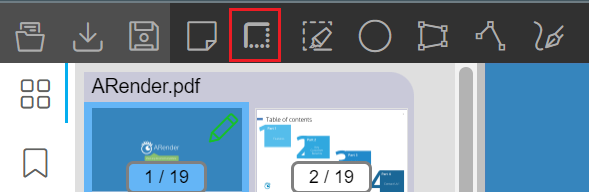
Example with the free text annotation button:
<bean id="addFreeTextAnnotationButton" class="com.arondor.viewer.client.toppanel.presenter.ActivableButtonPresenter">
  <constructor-arg value="addFreeTextAnnotationButton" />
  <property name="enabled" value="${topPanel.annotationMenu.freetext}" />
  <property name="className" value="standardButton mdi mdi-text-shadow toppanelButton" />
  <property name="buttonGroup" value="topPanel" />
  <property name="buttonTitle">
    <ref bean="labels#addFreetextAnnotation"/>
  </property>
  <property name="visibilityForTopPanel">
    <ref bean="topPanelVisibilityMode" />
  </property>
  <property name="inactiveButtonHandler">
    <ref bean="quitAnnotationCreationAction" />
  </property>
  <property name="buttonHandler">
    <ref bean="freeTextCreationAction" />
  </property>
  <property name="supportShortCut" value="true"/>
  <property name="shortcut">
    <bean class="com.arondor.viewer.client.documentcontent.shortcuts.KeyboardShortCut" scope="prototype">
      <property name="ctrl" value="true" />
      <property name="key" value="${shortcut.annotation.freetext.key}" />
      <property name="enabled" value="${shortcut.annotation.freetext.enabled}" />
    </bean>
  </property>
</bean>